![WINWON (Standard).png]](https://knowledgebasefaqs.winwontech.com/hs-fs/hubfs/WINWON%20(Standard).png?height=40&name=WINWON%20(Standard).png)
When to Use Bulk Send
The Bulk Send feature lets you send an e-signature form to all members of a selected roster in just a few clicks. This is the fastest way to ensure every student athlete receives and signs a required form — without having to send each one individually.
Bulk send is available only for forms that require a single signer (e.g., the student athlete or recruit). If the form requires multiple signers, such as a parent/guardian signature, you’ll need to use the individual send process instead.
Accessing Bulk Send
-
Navigate to Forms > Forms List.
-
Locate the form template you want to send.
-
If the Send icon is clickable, bulk send is available.
-
Click the Send icon to launch the send modal.
Step-by-Step Bulk Send Process
Step 1 – Select Your Team
-
The modal will prompt you to choose a roster.
-
Once selected, all athletes on that roster will populate in the recipient list.
Step 2 – Adjust Recipients
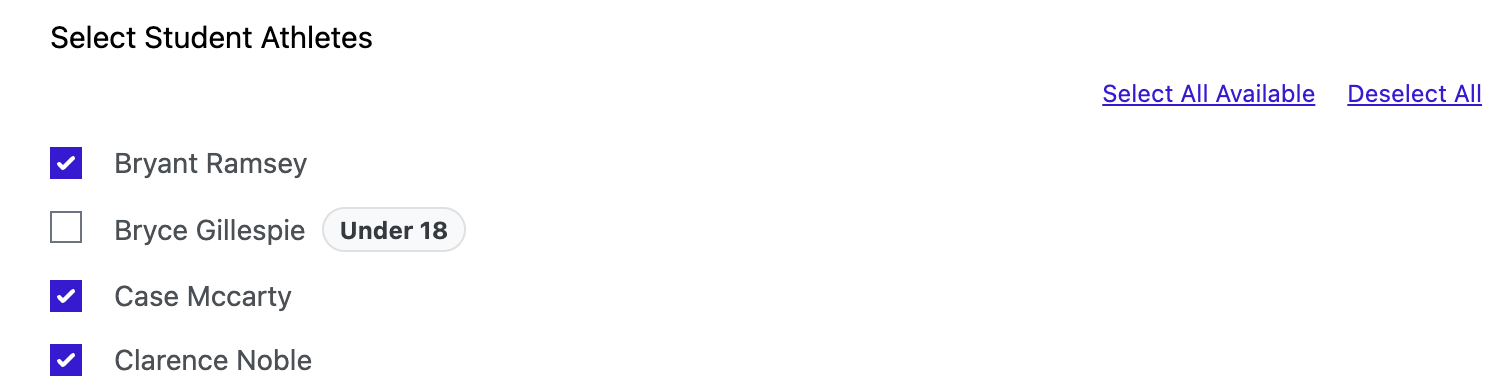 You can:
-
Select All athletes on the roster.
-
Deselect All athletes.
-
Manually deselect individual athletes.
This is especially useful for:
-
Under 18 Athletes – Remove minors who need a separate parent/guardian signature.
-
Special Exceptions – Remove anyone who should not receive this form (e.g., already completed offline).
Step 3 – Review the Email Preview
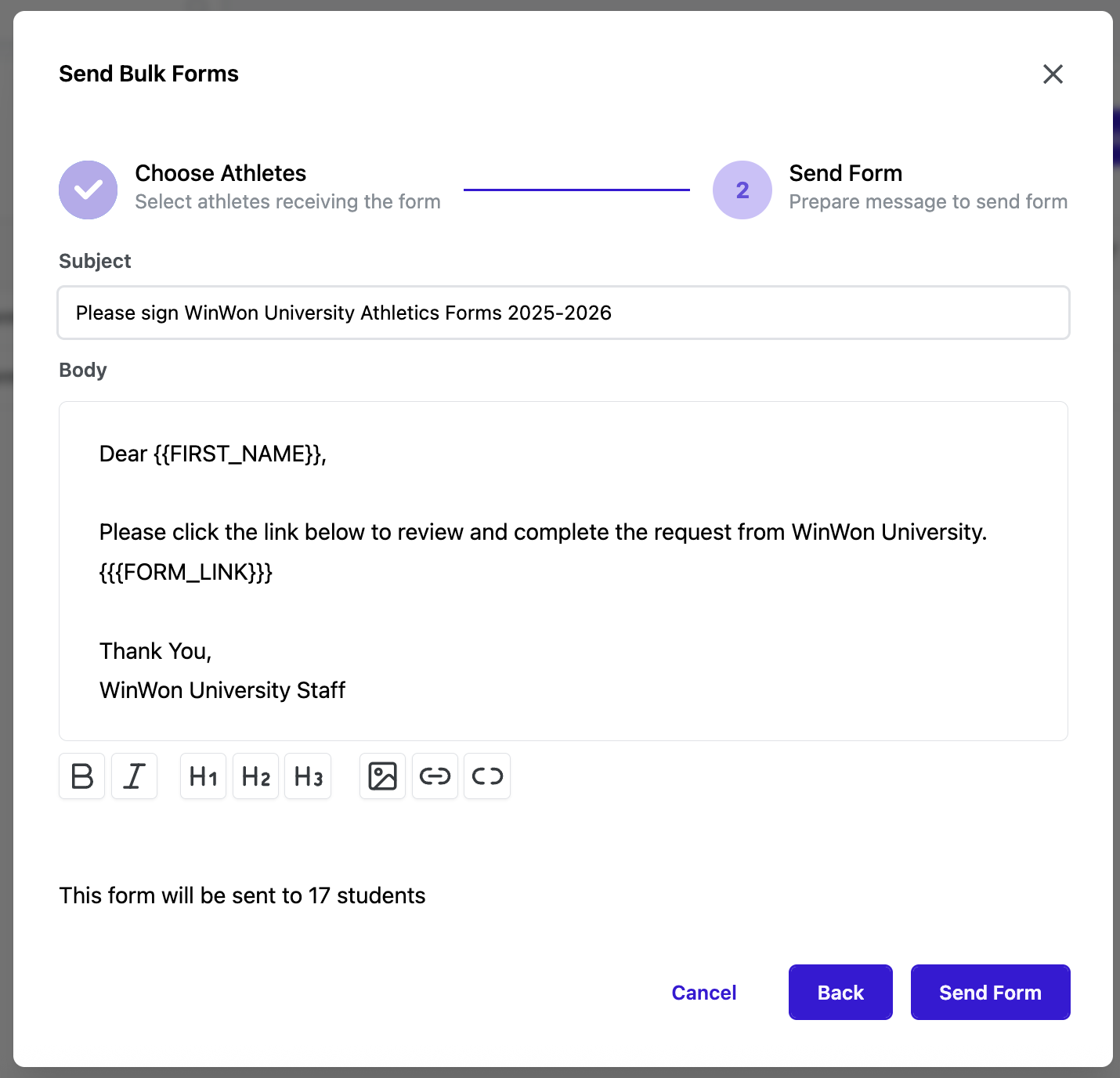
-
WinWon automatically personalizes the message with:
-
Athlete’s name using the First Name wildcard
-
Your school/institution name
-
Unique form link
-
-
Do not edit the Form Link placeholder — it is replaced automatically with the correct link for each recipient.
-
Make any optional changes to the message text before sending.
Step 4 – Confirm & Send
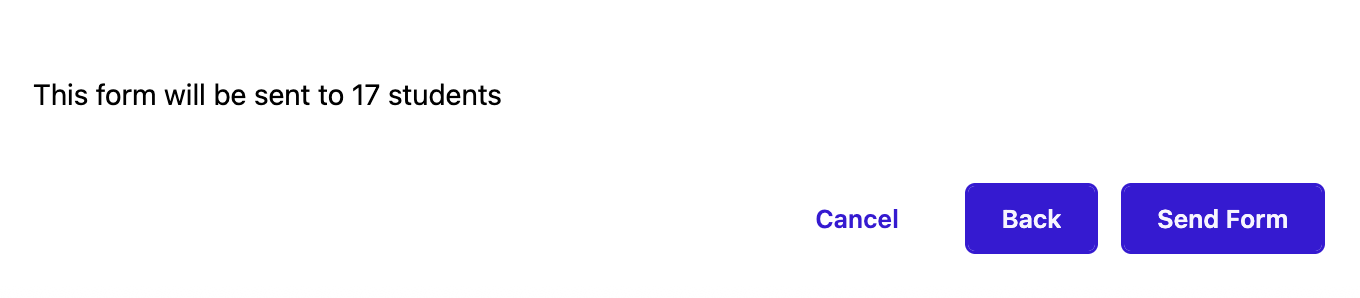
-
The bottom of the modal will confirm how many recipients the form will be sent to.
-
Click Send Form to start the process.
Step 5 – Sending Status
-
As the forms start to send, you’ll see a real-time progress indicator:
-
It will say "Sending form to Student Athlete Name (1/17)..." then "Sending form to Student Athlete Name (2/17)..." until all are sent.
-
-
Bulk send is fast — sending 30 forms takes just seconds. Let the progress page run until they are done sending!
Multi-Sport Athletes – Built-in Protection
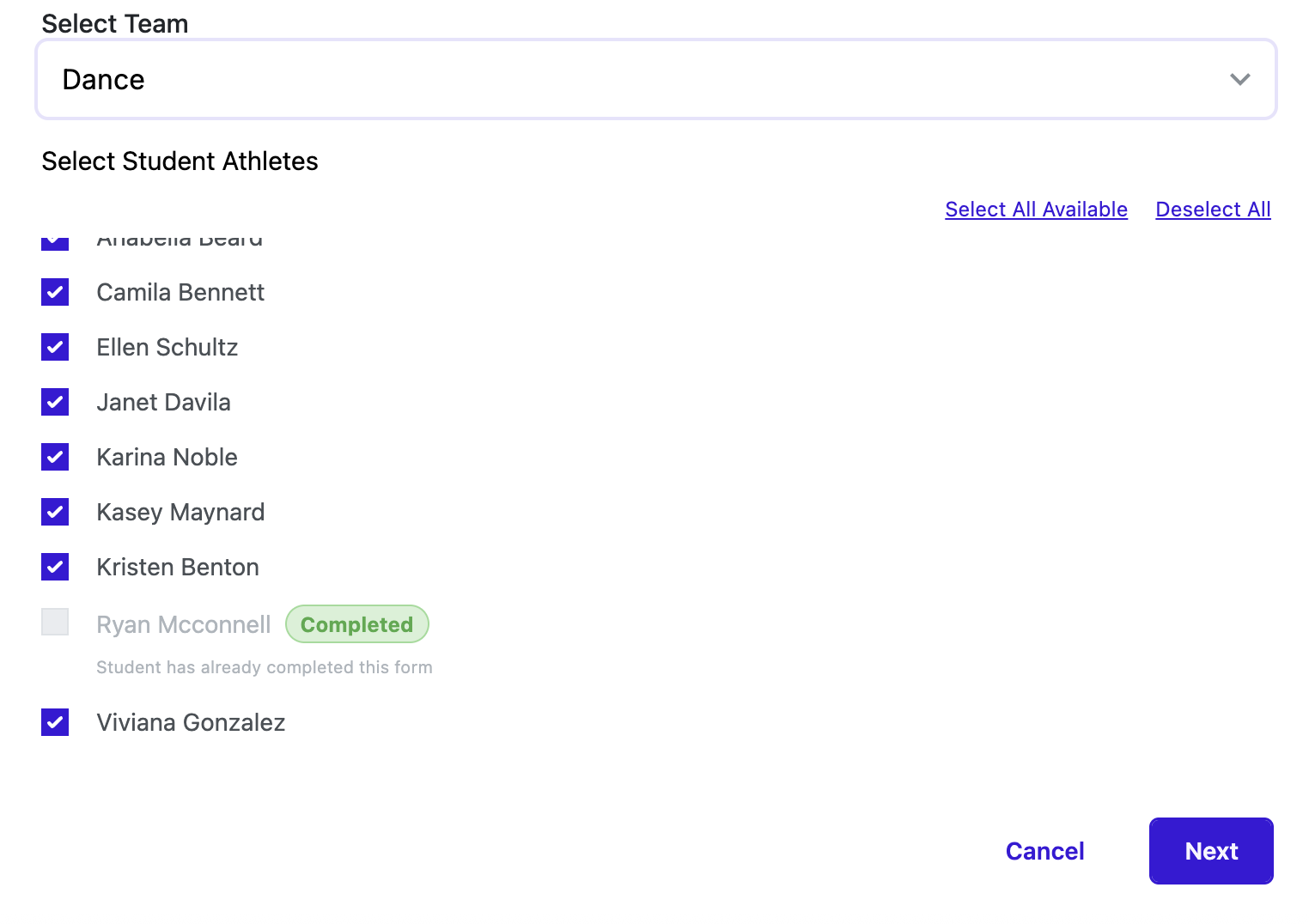
If a student is on multiple rosters, WinWon ensures they only receive one request for a given form:
-
If you send to Roster A first, those athletes are marked as having received the form.
-
When you send to Roster B, any athlete who already received it will be greyed out with a note showing either Pending or Completed based on their signing status.
Best Practice – Handling Minors in Bulk Send
-
Use the Under 18? system field to track which athletes are minors.
-
When sending in bulk, these athletes will have a visible “Under 18” chip next to their name in the modal.
-
Remove them from the bulk send and send separately via the Individual Send process with a configured parent/guardian signature.
-
For instructions on setting up and maintaining the Under 18 field, see Best Practices for Sending Forms to Minors.