![WINWON (Standard).png]](https://knowledgebasefaqs.winwontech.com/hs-fs/hubfs/WINWON%20(Standard).png?height=40&name=WINWON%20(Standard).png)
When to Use Individual Send
The Individual Send process is used for:
-
Forms that require multiple signers (e.g., a parent/guardian or a coach in addition to the student).
-
Sending a form to a single student rather than an entire roster.
-
Handling under 18 athletes who need a parent/guardian signature.
Bulk send is not available for these cases because the extra signer information must be entered for each request. These forms will have a greyed out send button in Forms List.
How to Send a Form to an Individual Athlete
Step 1 – Access the Student Profile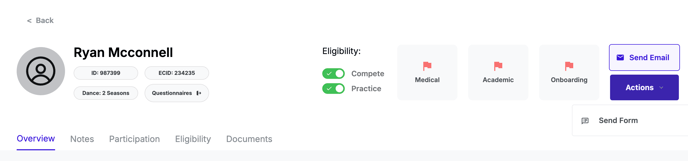
-
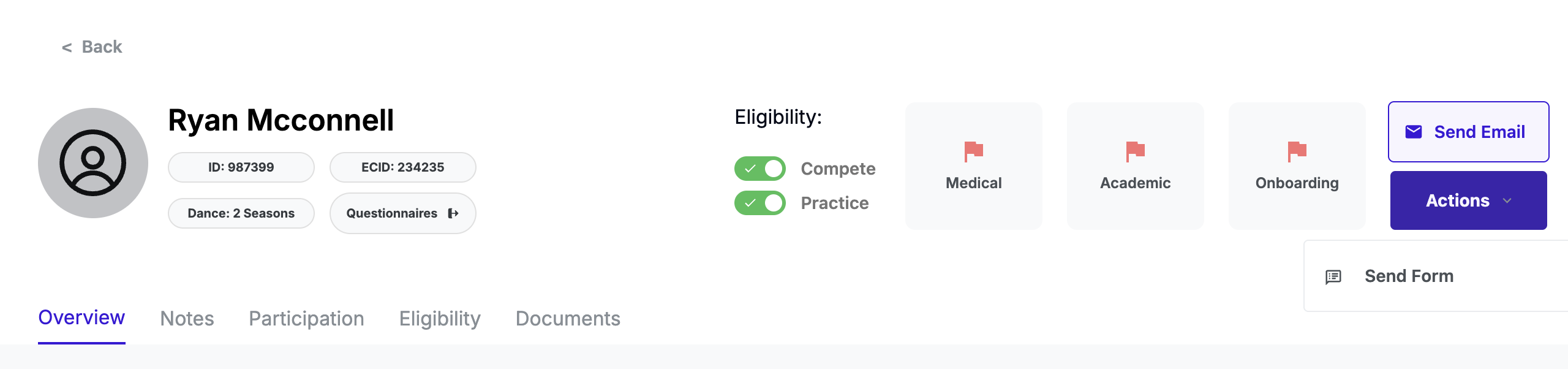
Navigate to the athlete’s profile.
-
Click the Actions button in the upper right.
-
Select Send Form from the dropdown menu.
Step 2 – Select the Form
-
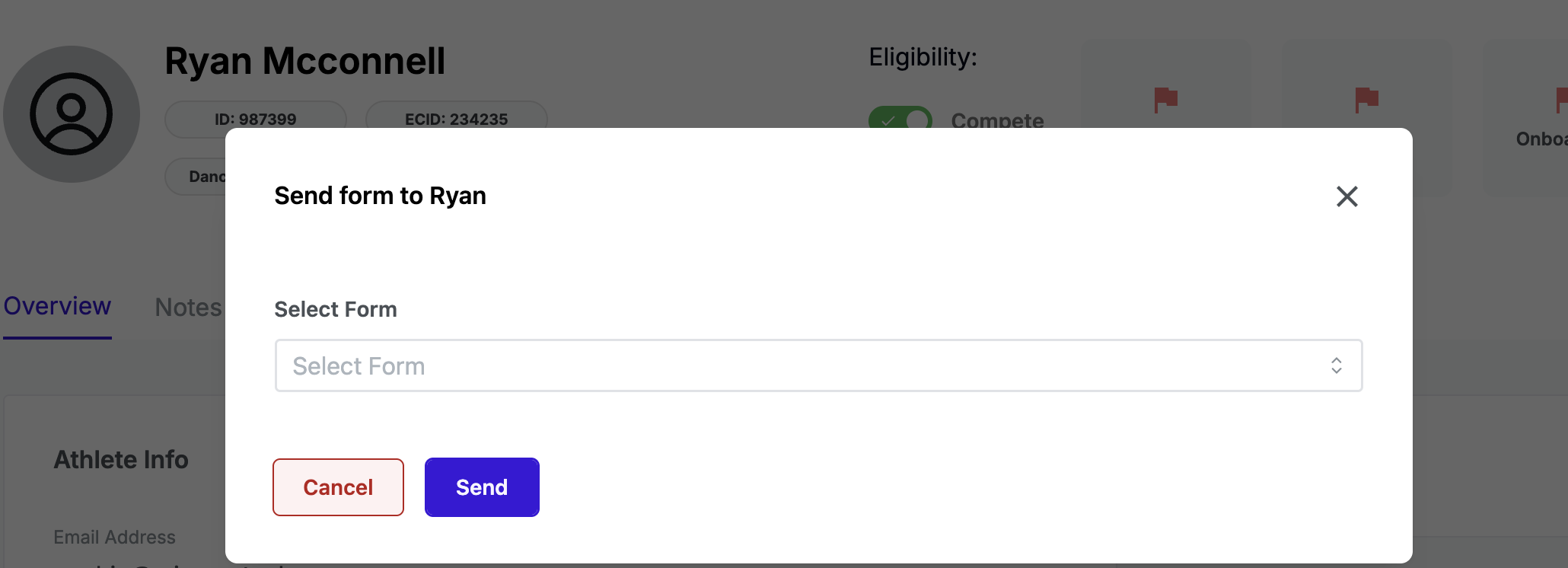
Choose the form you want to send from the list.
-
If the form is single signer only, the send process will look identical to bulk send — just for one recipient.
-
If the form requires additional signers, extra fields will appear (see next section).
Step 3 – Add Additional Signer Information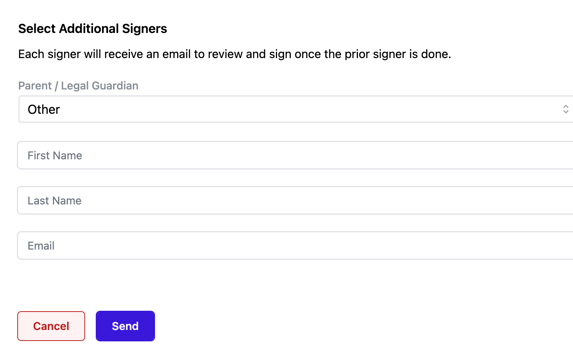
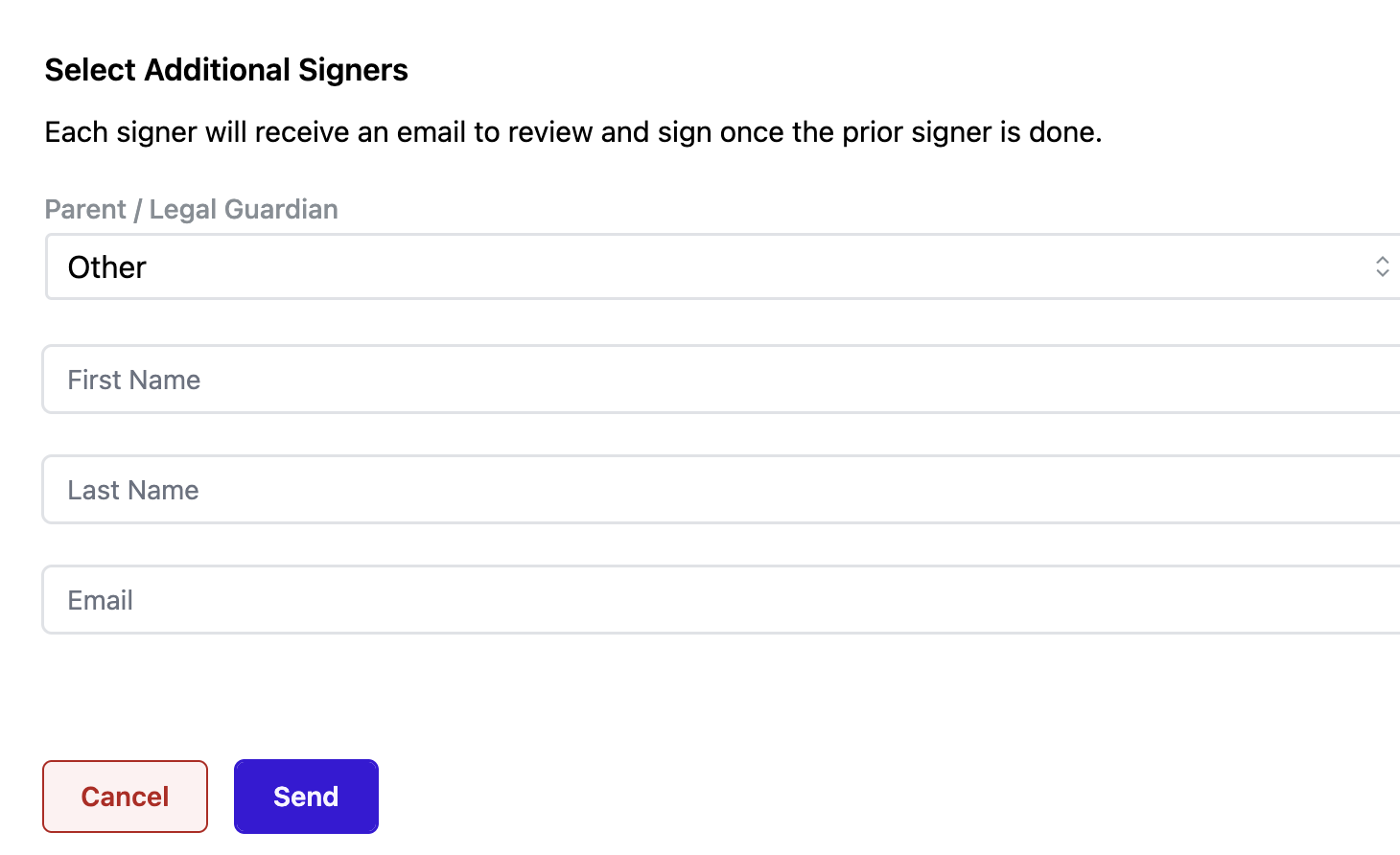
For forms configured with multiple signatures:
-
Fill in the First Name, Last Name, and Email Address of the additional signer(s).
-
Example: For a minor’s parent/guardian, you’ll add their full name and email.
-
WinWon will route the form in the correct order — to the student first, then to the parent/guardian.
Step 4 – Review the Email Preview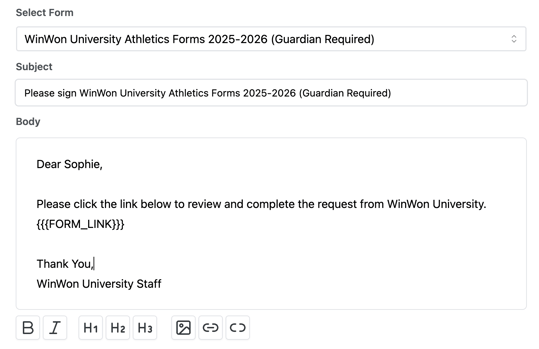
-
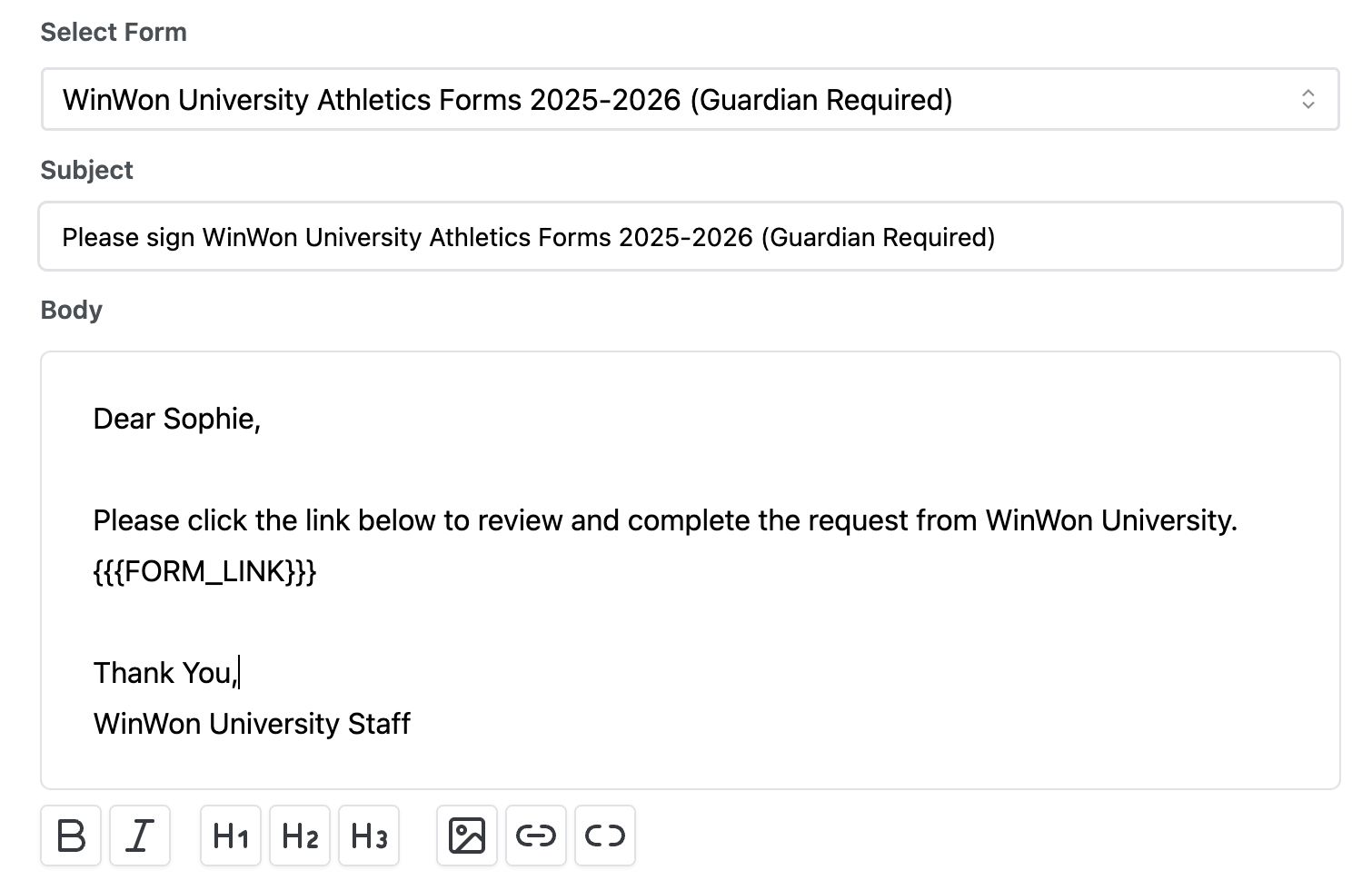
As with bulk send, the system personalizes the email with the athlete’s name, school name, and unique form link.
-
Do not edit the
FORM LINKplaceholder. -
You can edit the body text if you want to customize your message.
Step 5 – Send the Form
-
Click Send Form to complete the process.
-
The form will be sent to the designated recipient(s) immediately.
Best Practice – Sending to Minors
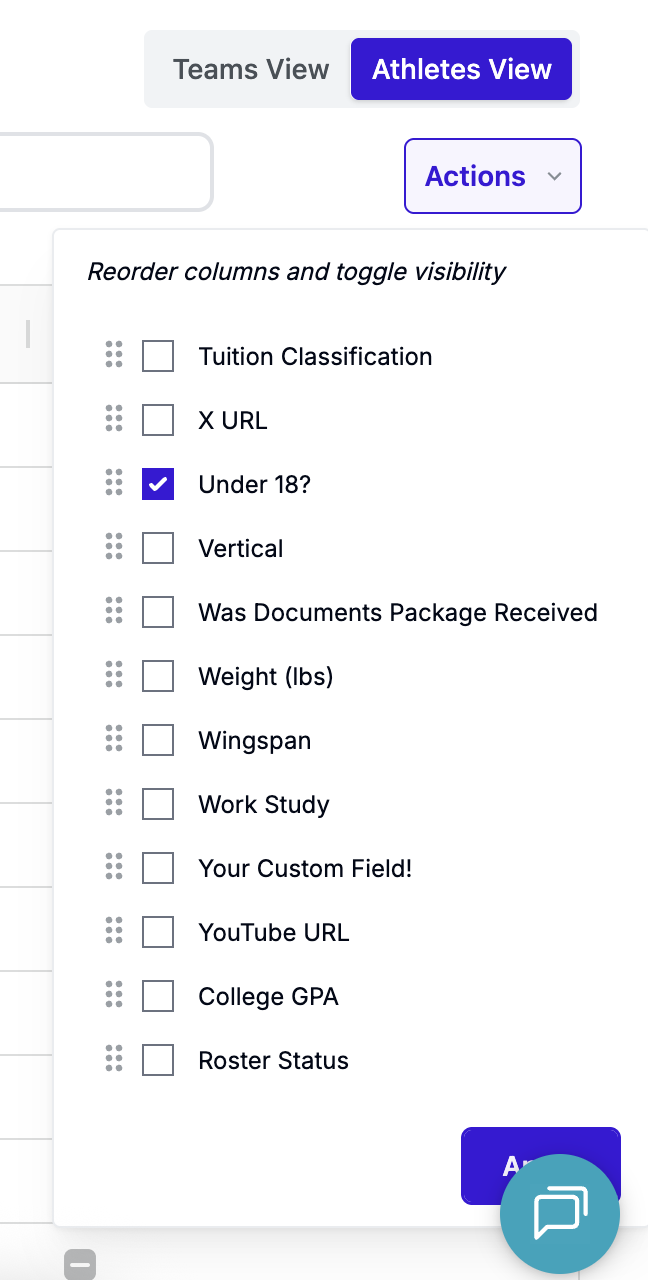
Handling minors in WinWon is easiest if you maintain the Under 18? system field for all rosters:
-
Admins: Go to Teams > Rosters > All Athletes view.
Coaches: Go to Teams > Rosters for your team. -
Click Actions > Edit Table View.
-
Scroll to the “U” section, select Under 18?, and click Apply.
-
Save this view for quick access next time.
-
Check the box for all athletes who are minors.
When bulk sending a form, these athletes will have an “Under 18” chip in the send modal — making it easy to deselect them and send separately via this individual process.