![WINWON (Standard).png]](https://knowledgebasefaqs.winwontech.com/hs-fs/hubfs/WINWON%20(Standard).png?height=40&name=WINWON%20(Standard).png)
Why This Matters
When working with student athletes under the age of 18, additional steps are sometimes required to ensure the correct signatures are collected and all legal requirements are met. WinWon allows you to easily identify minors, remove them from bulk sends when necessary, and send them separate forms configured with parent/guardian signers.
Step 1 – Identify Minors in Your Roster
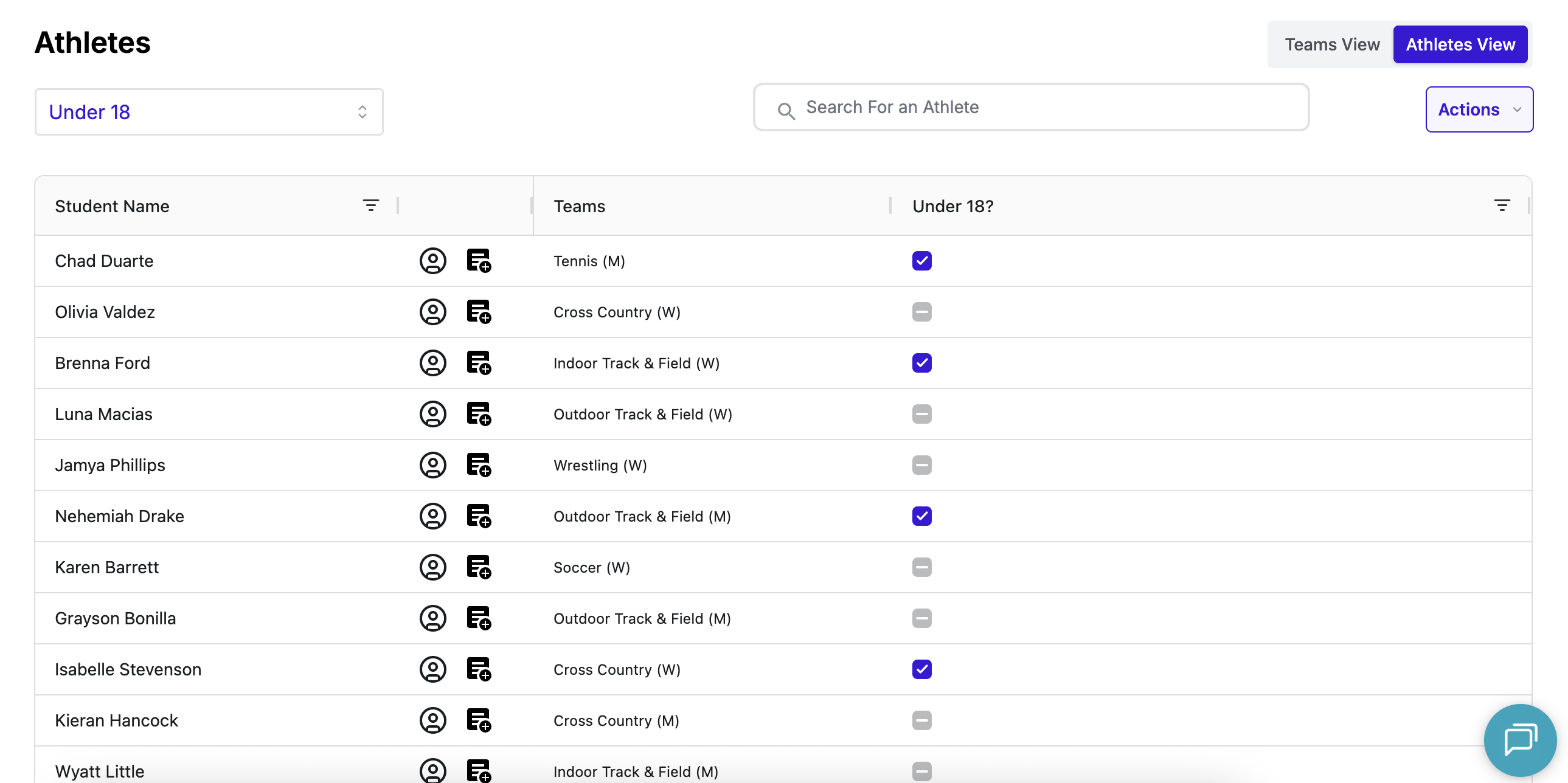
The foundation for managing minors in WinWon is maintaining the Under 18? system field for all student athlete profiles.
To set this up:
-
Admins – Go to Teams > Rosters > All Athletes view.
Coaches – Go to Teams > Rosters for your team. -
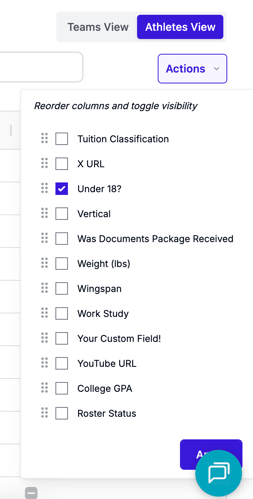
Click Actions > Edit Table View.
-
Scroll to the “U” section and select Under 18?.
-
Click Apply.
-
For easy reuse, click Create New View (purple button), give it a name (e.g., “Under 18 Tracking”), and save it.
-
Check the box for each athlete who is under 18.
This setup ensures minors are flagged automatically whenever you send forms.
Step 2 – Bulk Sending to a Roster That Includes Minors
When you start a bulk send from the Forms List page:
-
Any athlete flagged as Under 18 will have a visible chip next to their name in the recipient list.
-
Use your discretion:
-
Option 1: Remove minors from the bulk send and send them individually via the Send to Individual process.
-
Option 2: Include minors if the form is not requesting a parent/guardian signature.
-
Step 3 – Sending Forms to Minors Individually
For most workflows, minors should receive a special form version with additional signers configured.
-
From the athlete’s profile, click Actions > Send Form.
-
Select the appropriate form.
-
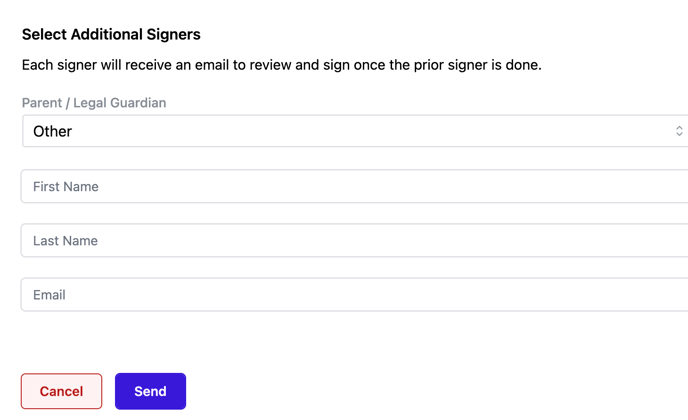
Enter the First Name, Last Name, and Email of the parent/guardian signer(s).
-
Review the email preview — the
FORM LINKwill populate automatically for each signer. -
Click Send Form.
Step 4 – Recommended Form Setup for Minors
To streamline the process:
-
WinWon will create a separate form template specifically for minors, with all necessary additional signers configured.
-
It will be labeled clearly (e.g., Eligibility Form – Guardian Required).
-
This ensures no extra configuration is needed at send time beyond entering parent/guardian contact details.
Step 5 – Tracking Forms Sent to Minors
-
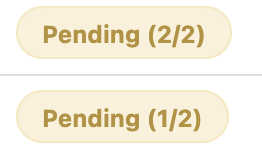 Use the Form Tracker to monitor minor-specific forms the same way you track all other forms.
 -
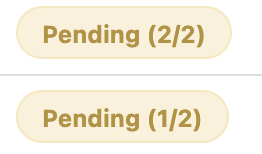
Pay attention to Pending 1/2 or Pending 2/2 statuses — these indicate the form is awaiting the student’s or the parent/guardian’s signature.
-
If needed, use View Progress to confirm form progress.
Quick Checklist for Working with Minors
-
✅ Keep the Under 18? field accurate at all times.
-
✅ Create a saved roster view that includes this field.
-
✅ Have a dedicated form template for minors with parent/guardian signers.
-
✅ Remove flagged minors from bulk sends unless the form doesn't include a guardian signature.
-
✅ Track pending forms in Form Tracker to ensure all required signers complete the process.