![WINWON (Standard).png]](https://knowledgebasefaqs.winwontech.com/hs-fs/hubfs/WINWON%20(Standard).png?height=40&name=WINWON%20(Standard).png)
Overview
The Form Tracker is your central hub for monitoring all e-signature forms and questionnaires sent from your WinWon platform. Whether forms were sent in bulk or to individuals, this page provides complete visibility into progress and completion status.
Accessing Form Tracker
-
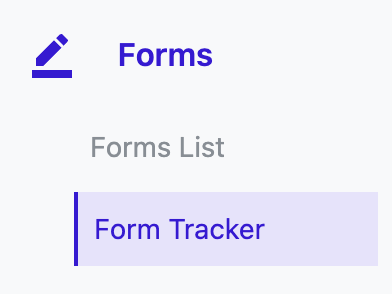
From the web platform, navigate to Forms > Form Tracker.
-
The table displays every form sent from your account, regardless of team or recipient type.
Understanding the Form Tracker Table
The table is fully sortable and filterable by any column, allowing you to quickly find the information you need.
Columns include:
-
Form Requested – Name of the sent form. Sort A–Z or filter for a specific form.
-
Recipient – Name of the student athlete or recruit. Sort A–Z or filter for an individual.
-
Recipient Type – Displays either Student Athlete or Recruit.
-
Team – The athlete’s team(s) at the time of sending.
-
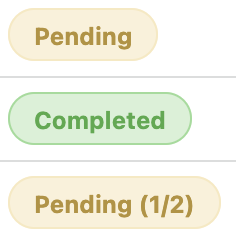 Status – Current signing status with clear visual chips:
-
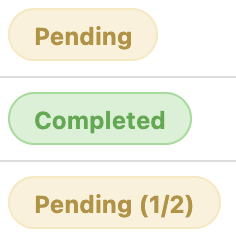
Pending (yellow) – Awaiting a single signer’s completion.
-
Pending 1/2 (yellow) – First of two (or more) signatures pending.
-
Pending 2/2 (yellow) – Second signature pending after the first is complete.
-
Completed (green) – All required signers have finished.
-
-
Send Date – Date the form was sent.
-
Last Updated – Most recent status change date.
-
Output – Actions to view, download, or check progress.
Viewing and Downloading Forms
In the Output column:

-
Completed Forms – Show a purple download icon. Click to open or save the signed PDF.

-
Questionnaire Results – Show a “View Submission Results” link to see completed responses.
-
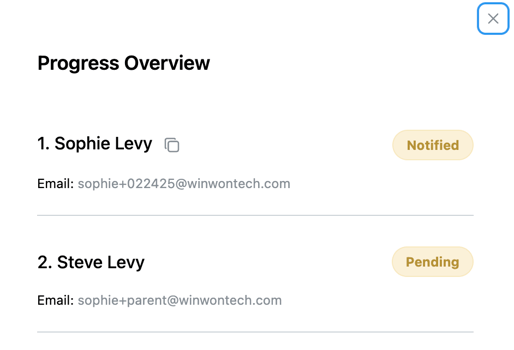 Pending Forms – Show “View Progress,” which lets you:
-
See all signers on the form.
-
Confirm who has been notified.
-
Check pending statuses.
-
View the email addresses used.
-
Copy a direct link for the next signer if needed.
-
Tracking Forms with Multiple Signers
For forms requiring multiple signers (e.g., parent/guardian + student):
-
 Use the Pending 1/2 and Pending 2/2 statuses to identify where the process is stalled.
 -
If necessary, copy the link for the next signer from the View Progress window and share with the recipient manually via email or text.
Athlete Profile Document Storage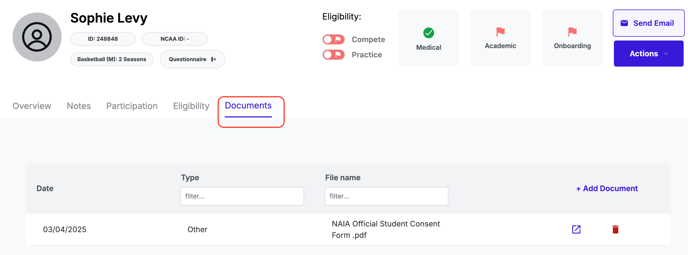
In addition to Form Tracker, you can always view an athlete’s signed forms directly from their profile:
-
Navigate to the athlete’s profile.
-
Open the Documents tab.
-
All completed forms will be stored here for ongoing access.
Tips for Staying Organized
-
Filter by Form Requested to check completion rates for a specific document.
- Filter by Team to check completion rates by team.
-
Sort by Status to prioritize pending follow-ups.