![WINWON (Standard).png]](https://knowledgebasefaqs.winwontech.com/hs-fs/hubfs/WINWON%20(Standard).png?height=40&name=WINWON%20(Standard).png)
Overview
WinWon provides a robust set of Athlete Fields out of the box to capture common academic, athletic, and compliance information. But since every institution, sport, and team may have unique needs, you can also create custom fields.
All fields—system-provided or user-created—are available across the platform for every student-athlete. This ensures consistency, flexibility, and accessibility of athlete data.
Accessing Athlete Fields
-
Navigate to Settings > Athlete Fields.

-
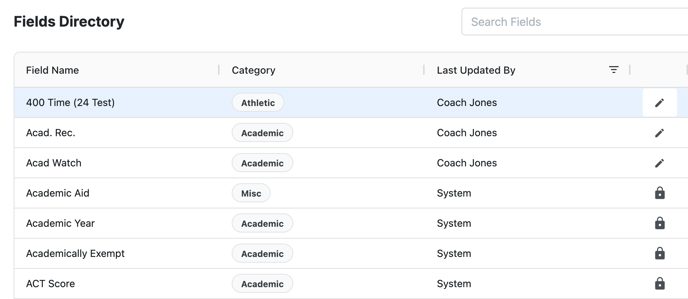
The Field Directory Table will display with the following columns:
-
Field Name – Current field name in the system
-
Category – Academic, Athletic, Basic Info, Contacts, Miscellaneous, Physical, or Social Media
-
Last Updated By – User who most recently modified the field
-
Edit / Lock Icon – Indicates if the field can be edited
-
✏️ Pencil = Editable field (custom)
-
🔒 Lock = System field (non-editable, provided by WinWon)
-
-
Use the search bar to quickly find fields, and sort or filter columns like any other WinWon table.
Actions You Can Take
1. Edit Existing Fields (Pencil Icon)
-
Click the ✏️ icon to open a pop-up editor.
-
Change the field name and/or its category.
-
Save changes.
-
Note: You cannot update the field type after creation.
2. Add a New Field

-
Click Add New Field.
-
Enter the field name, select a category, and choose a field type (Text or Checkbox).
-
To keep data clean, WinWon does not allow duplicate fields.
-
As you type, the system will suggest existing fields that are similar.
-
If a duplicate exists, consider using that field instead of creating a new one.
-
-
Submit to create the field.
The new field now appears in the Field Directory and can be used by coaches and administrators across all athletes.
Key Categories
-
Academic – e.g., major, class year, GPA
-
Athletic – e.g., position, jersey number, playing status
-
Basic Info – e.g., DOB, hometown
-
Contacts – e.g., parent/guardian, emergency contact
-
Miscellaneous – custom, catch-all
-
Physical – e.g., height, weight, mile time
-
Social Media – Instagram, Twitter handles
Summary
Athlete Fields give you the flexibility to manage a single, clean data source for all student-athletes while still tailoring the system to your institution’s unique requirements.