![WINWON (Standard).png]](https://knowledgebasefaqs.winwontech.com/hs-fs/hubfs/WINWON%20(Standard).png?height=40&name=WINWON%20(Standard).png)
Building and Customizing Recruiting Questionnaires in WinWon
Recruiting questionnaires are an essential tool for gathering detailed information from prospective recruits. WinWon allows you to build and customize these questionnaires to fit the unique needs of your team and streamline the recruitment process. Here’s how to create and manage recruiting questionnaires in WinWon:
Building and Customizing Questionnaires
-
Create Custom Questionnaires: WinWon enables you to build and fully customize recruit questionnaires for your team. You can tailor the questions to collect the exact information that’s most important to you—whether it’s athletic performance, academic achievements, or personal background.
- In your WinWon account, navigate to Forms > Forms List
- Here you will see a list of all forms available to your team for both student athlete's and recruits to fill out.
 Navigate to the questionnaire for your team and click the gear icon to edit
the questionnaire
-
Adjust Information and Organize Sections: Customize not only the content but also the structure of your questionnaire. Organize the sections to make it easier for recruits to fill out, ensuring a smooth experience that allows you to collect and manage the data more effectively.

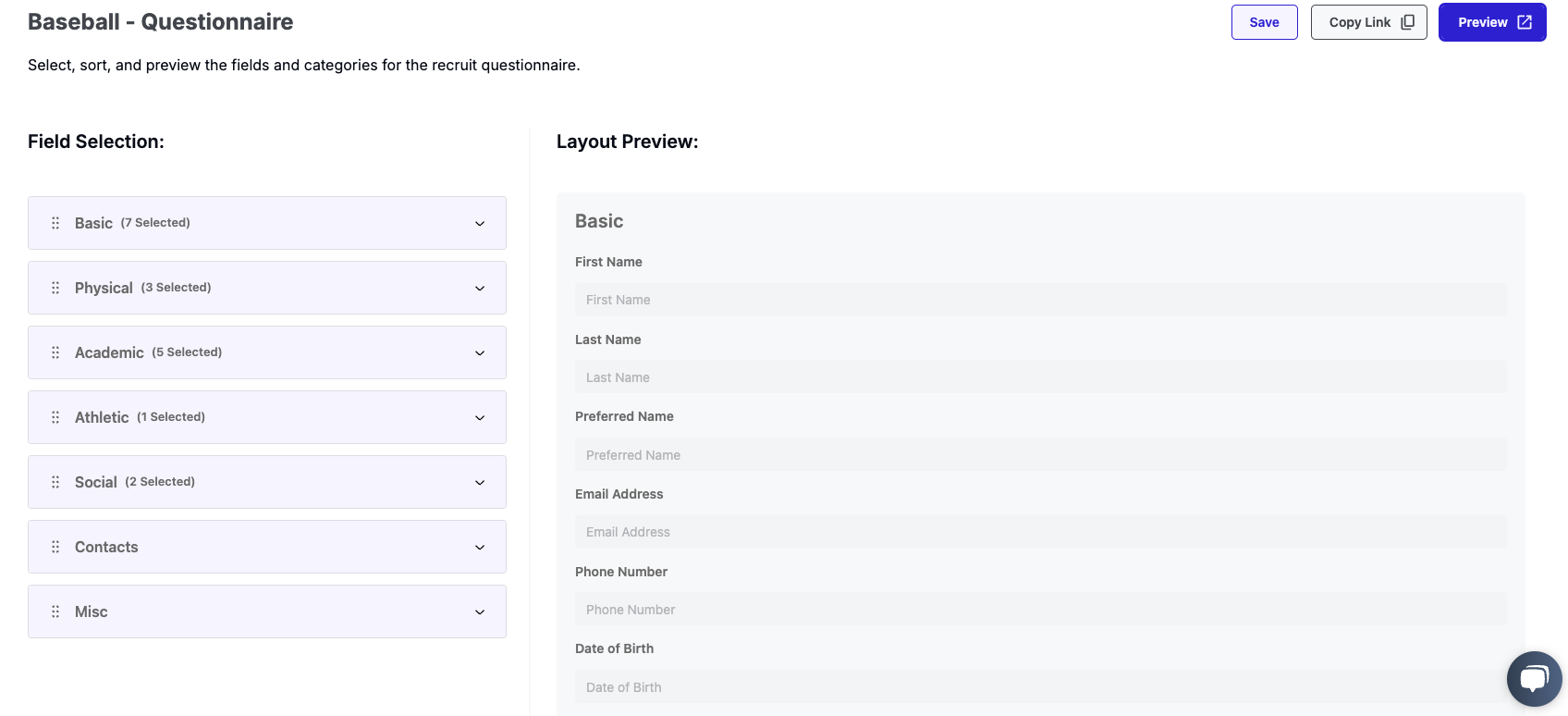
- On the left under Field Selection, drag and reorder the flow of sections for how a recruit will fill out the questionnaire.
- Expand each section and select/deselect the fields recruits will need to fill out. Note that first name and last name are required.
- On the right under Layout Preview, see what the questionnaire will look like for a recruit as you build it.
- When finished, Save the questionnaire, Copy Link, or Preview the questionnaire to see what it will look like from a recruits perspective.

Sending Recruiting Questionnaires
You have multiple options for sending questionnaires to recruits, making it easy to collect responses wherever you are:
-
Send via Email: From the web app, you can send recruiting questionnaires directly to recruits’ email addresses. This ensures that your prospects receive the form and can fill it out at their convenience.
- From Forms > Forms List, select Send next to the questionnaire you want to send. From here here you will be in the standard send message email experience and the Form Link will pre-populate for you. Make any adjustments, select your recipients and send.
- From Recruiting > Recruits and navigating to a recruits profile, select Send Questionnaire from the Actions button.
-
Send via Text: On the mobile app, you can send a direct link to the questionnaire via text, allowing for quick and easy access on the recruit’s phone.
-
QR Code for In-Person Scanning: When meeting recruits in person, you can generate and show them a QR code that they can scan on the spot. This QR code will take them directly to your questionnaire, making it simple to capture their details in real-time.
Click here to learn more about Communicating with Recruits and sending questionnaires.
Tracking Questionnaire Statuses and Responses
You can track the status of questionnaires you send and see responses from recruits in the Form Tracker.
- Form Tracker: Use WinWon’s form tracker to monitor the status of all the questionnaires you've sent out. The form tracker provides an overview of which forms have been completed, which are still pending, and if there are any that need follow-up. This feature ensures you stay on top of your data collection efforts and don't miss any important responses.
- Navigate to Forms > Form Tracker to see all sent questionnaires and their status.
- You can filter and sort the columns for additional visibility.
- Questionnaire Responses: See a questionnaire response from a recruit directly in their profile. You can view all recruit questionnaire history if they have filled out more than one.
- Navigate to the Recruit Profile from the recruit list.
-
- If a recruit has filled out a questionnaire, they will have a Questionnaires chip next to their status. Click this to see the questionnaire history.

By building and customizing your recruiting questionnaires in WinWon, you can efficiently gather the information you need and keep your recruitment process organized and streamlined.