![WINWON (Standard).png]](https://knowledgebasefaqs.winwontech.com/hs-fs/hubfs/WINWON%20(Standard).png?height=40&name=WINWON%20(Standard).png)
Overview of the Calendar View
The Calendar View page displays your department’s full schedule and is accessible to all users.
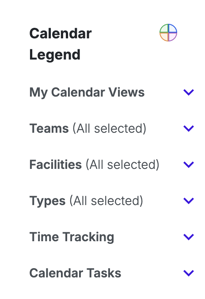
Lefthand Sidebar:
- Displays a legend with color codes for each event type.
- Includes toggle list options:
- My Calendar Views
- Teams
- Facilities
- Types
- Time Tracking
- Calendar Tasks
-
Main Calendar Area:
- Offers a standard calendar layout showing events.
- Allows toggling between Day, Week, and Month views.
- Supports event creation.

Filtering by Teams, Facilities, and Types
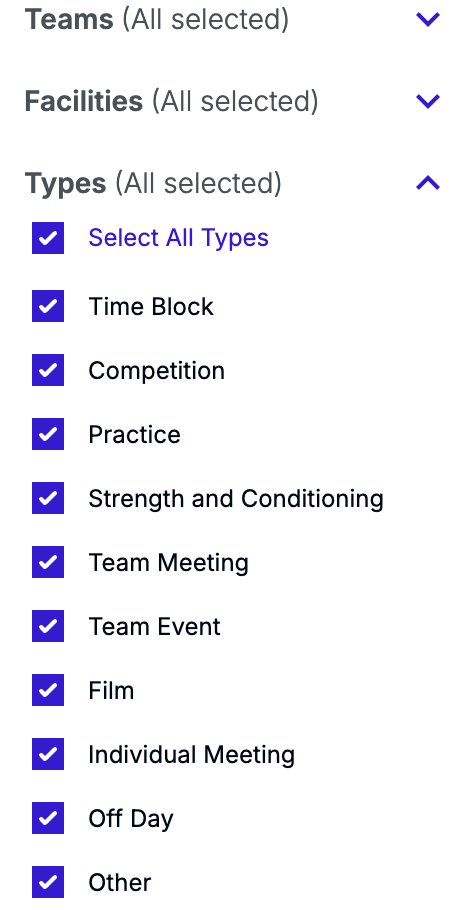
- Teams, Facilities, and Types toggles:
- Default settings show all options.
- Select specific teams, facilities, or event types to narrow down the calendar view.
- Combine filters for a highly customized calendar view.
My Calendar Views
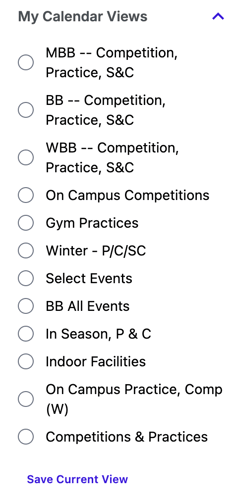
Customize your calendar to focus on what matters most.
- Create a Saved View:
- Set the filters you would like by Teams, Facilities, and Event Types.
- Once selected, under My Calendar Views, click Save Current View, name it, and save.
- Toggle between multiple saved views.
- Create as many saved views as you like.
- Delete a View:
- Hover over a saved view and click the trash icon to remove it.
Pro Tip:
- Coaches can save views to monitor things like frequently used facilities, just practices, just competitions, etc.
- Athletic trainers could create views for things like all on-campus competitions requiring athletic training staffing.
- Get creative and unlock the power of saved views!
Time Tracking
Monitor compliance with divisional time limits by team: 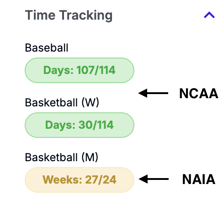
- NAIA Schools: Tracks weeks used out of the 24-week limit by team.
- NCAA Schools: Tracks days used out of the 114-day limit by team.
Learn more about Time Tracking.
Calendar Tasks
Stay on top of required actions: 
- Confirm Last Week’s Events:
- Review previous week's events, add missing ones, or confirm all.
- Review Deleted Events:
- See and manage events edited or removed by the calendar admin.
Interacting with the Calendar
- Add an Event:
- Click the Add Event button or anywhere in the calendar. Fill out the required details: Event Type, Team, Time, Location, and Notes. Submit.
- To learn more about Creating and Managing Events, click here.
- Toggle Time Range Views:
- Switch between Day, Week, and Month views using the options in the upper right corner.
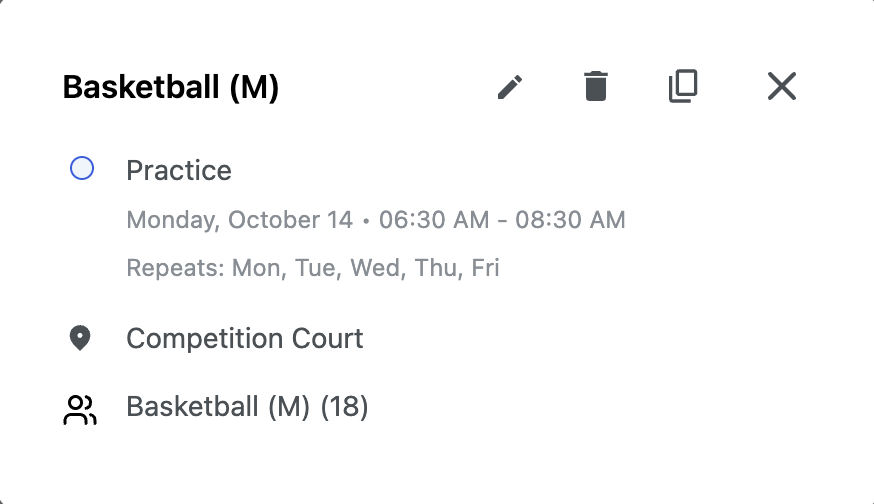
- View Event Details:
- Hover over an event to see a quick overview.

- Click an event for full details, including participant information (if you have roster access).

- Hover over an event to see a quick overview.
The Calendar View provides powerful tools for managing schedules, tracking compliance, and customizing visibility to fit your needs.