![WINWON (Standard).png]](https://knowledgebasefaqs.winwontech.com/hs-fs/hubfs/WINWON%20(Standard).png?height=40&name=WINWON%20(Standard).png)
Mobile App (iOS) – Text Messaging
Text Recruits Individually or in Groups: Send individual or mass one-to-one text messages to your recruits directly from your personal number. Whether you’re sending a quick follow-up to one recruit or updating a group, the mobile app makes communication seamless.
-
- From the Home Page, click Draft New Message. In the To: line at the top, use the + to select recipients for your message.
- From the top, select Recruits or Groups. Recruits will show you all recruits in your database and allow you to select all or select some to message. Groups will allow you to select one or more already created recruit groups to message. Click here to learn more about Creating Recruit Groups.
- Click Continue Drafting to enter the message screen. Start typing your text in the box provided or use Apply a Template. Click here to learn more about Creating a Messaging Template.
%20KB.gif?width=225&height=400&name=Draft%20and%20Send%20a%20Message%20(Mobile)%20KB.gif)
- You can personalize your message with the variables First Name, Last Name, and Preferred Name. This will input and personalize these values for each recruit in your message. If you select Preferred Name and a recruit does not have this field populated, it will default to using First Name instead.
- You can utilize Emojis and Photo/Video media in your text messages.
- When you are done drafting, click Preview Before Sending. This will open a message preview to each recruit in iMessage. If you used a personalized variable, it will show that value here. Review, make any changes, and send your text message.
- If you are sending more than one text, each additional message will pop up in iMessage for you to review and send.
- When all messages are complete, you will return to the WinWon app and see a summary of the number of successful texts sent or failed or canceled messages.
- On the Home Page, access Message History to view your text history, including recipients, date and time sent, and any failed or canceled messages.
%20KB.gif?hsLang=en)
Please Note: Each text message you send will come from the number you are using the WinWon Mobile App on. Each message is a one-to-one text. You are able to draft a message to multiple recipients at once, but it is NOT a group text.
Text Message Templates: Save time by building text templates for messages you frequently send to recruits. With customizable templates, you can maintain consistency in your communication while speeding up the process.
- To create and manage text templates, go to Draft New Message from the Home Page.
%20KB.gif?width=225&height=400&name=Create%20a%20Text%20Template%20(Mobile)%20KB.gif)
- Select Apply Template in the message drafting space. From here you can edit an existing template from the pencil icon or build a new template with the + icon.
- To delete a template, click the pencil icon, and then the trash can icon to delete.
- To personalize a template, use the variables First Name, Last Name, and Preferred Name. This will input and personalize these values for each recruit in your message. If you select Preferred Name and a recruit does not have this field populated, it will default to using First Name instead.
%20KB.gif?hsLang=en)
Text a Recruit a Link to the Questionnaire: Need a recruit to fill out your questionnaire
%20KB.gif?hsLang=en) after a conversation? You can send them a direct link to the recruiting questionnaire via text. This helps streamline the information-gathering process and ensures you get the details you need quickly.
after a conversation? You can send them a direct link to the recruiting questionnaire via text. This helps streamline the information-gathering process and ensures you get the details you need quickly.-
- To access the QR code, click Add New Recruit from the Home Page.
- In the upper righthand corner, click the QR Code symbol, to load the QR code for your team. Use the Message icon in the middle to text the link to a recruit to fill out. You can send to an individual recruit or a group!
Please Note: To edit the content and layout of the Recruiting Questionnaire, please visit the WinWon web application at app.winwontech.com. Click here to learn more about Building and Customizing a Recruiting Questionnaire.
Web Application – Email Communication
From the web application, you can draft and send emails to recruits. This is perfect for longer, more detailed messages or for sending documents and attachments.
Email Recruits Individually or in Groups: Send individual or bulk emails to your recruits directly from your email. 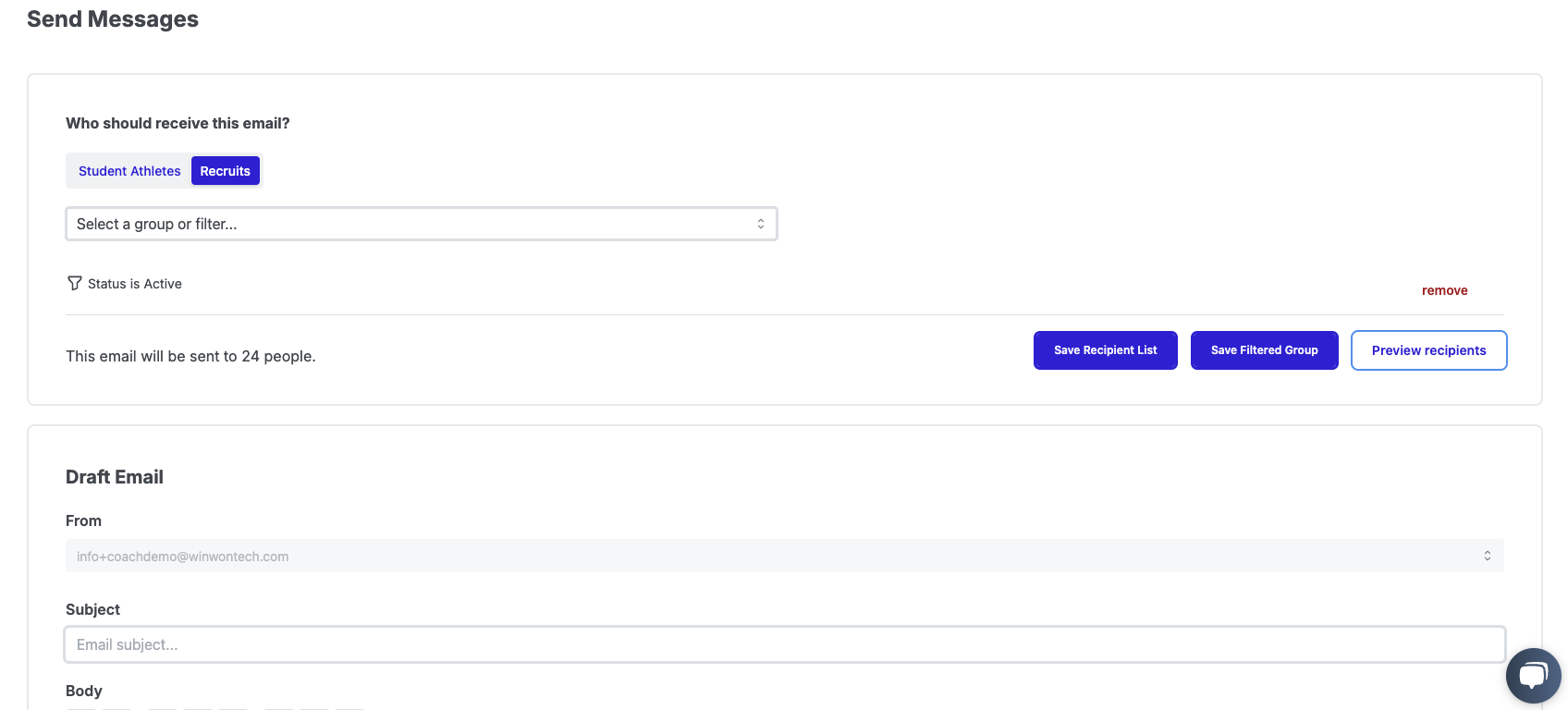
-
- From Messages in the side bar on the web application, select Send Messages.
- Under Who should receive this email?, toggle to Recruits
- From the dropdown, select a Group or a Filter.
- Selecting Group will bring up another dropdown allowing you to select a group you would like to message. Click here to learn more about Creating Recruit Groups.
- You can also select one of the pre-defined Filters like graduation year or recruiting stage.
- When you've selected either a group or a filter click Apply. You can now preview the recipients for this message in your group.
-
- To email an Individual Recipient, select Email. This will allow you to search for the email of the recruit you want to contact.
- Draft Email: You can personalize your message with the variables First Name, Last Name, and Preferred Name. This will input and personalize these values for each recruit in your message. If you select Preferred Name and a recruit does not have this field populated, it will default to using First Name instead.
-
- When you are done drafting, click Send Me a Test Email if you would like a preview or Send Email to your recipients.
Email Templates: Save time by building email templates for messages you frequently send to recruits. With customizable templates, you can maintain consistency in your communication while speeding up the process.
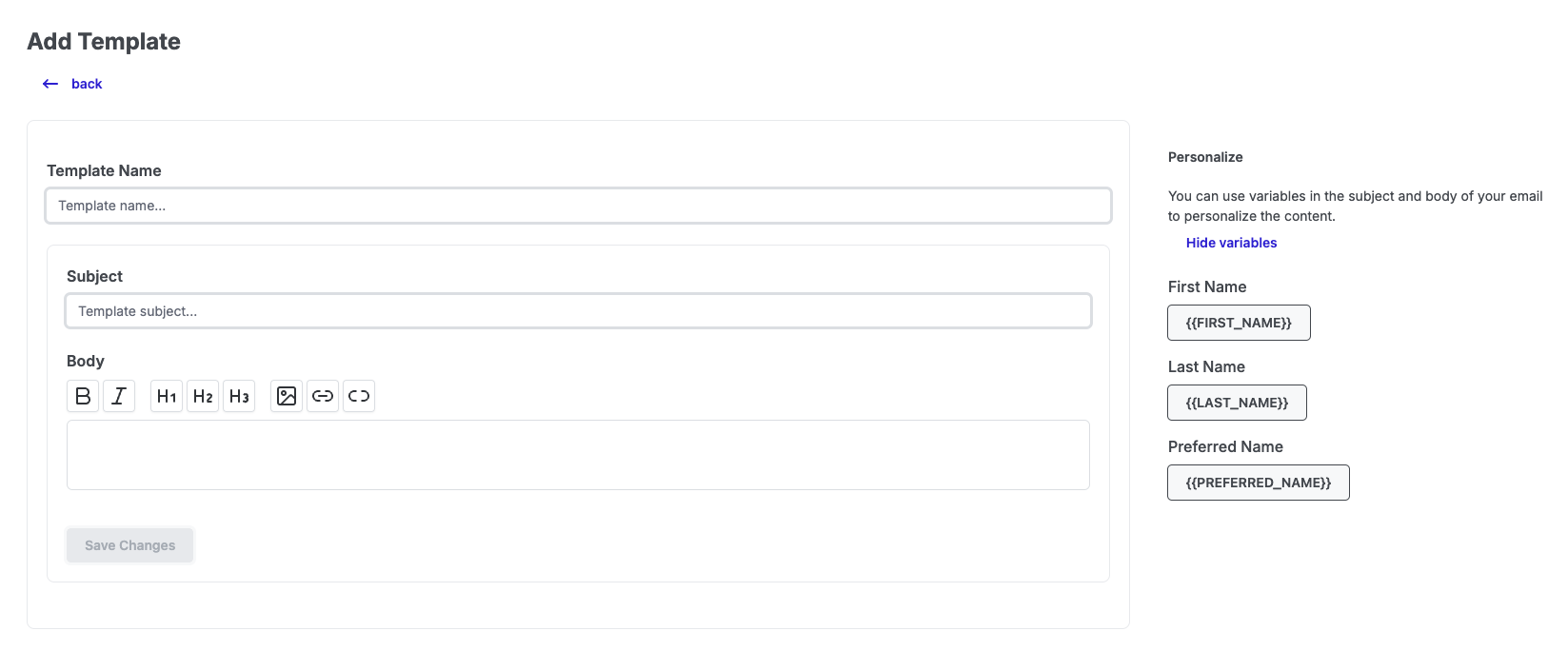
- To create and manage email templates, go to Messages > Templates in the navigation sidebar.
- Select Create New Template to build from scratch
- To personalize a template, use the variables First Name, Last Name, and Preferred Name. This will input and personalize these values for each recruit in your message. If you select Preferred Name and a recruit does not have this field populated, it will default to using First Name instead.
- Add images to your template to make it pop
- Name your template and save the changes
- Select Edit Template to manage an existing template
- Select the Trash icon to delete a template
- Select Draft Message to use the selected template to email recruits
Email a Recruit a Link to the Questionnaire: Need a recruit to fill out your questionnaire after a conversation? You can send them a direct link to the recruiting questionnaire via email. This helps streamline the information-gathering process and ensures you get the details you need quickly.
The Recruiting Questionnaire can be sent in two ways:
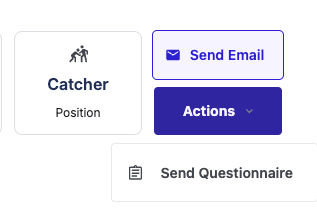 Navigate to the recruit's profile and under the Actions menu, select Send Questionnaire
- A window will pop up allowing you to preview the message, make any changes, and send to your recruit. The input
FORM_LINK will automatically include your team's recruiting questionnaire.
- A window will pop up allowing you to preview the message, make any changes, and send to your recruit. The input
- Navigate to Forms > Forms List in the sidebar navigation menu.
- Select the questionnaire you'd like and click Send. This will bring you to the standard Send Messages experience and allow you select your recipients and adjust the body of the message before sending. The input FORM_LINK will automatically include your team's recruiting questionnaire.