![WINWON (Standard).png]](https://knowledgebasefaqs.winwontech.com/hs-fs/hubfs/WINWON%20(Standard).png?height=40&name=WINWON%20(Standard).png)
Create and Manage the Recruit Table
The Recruit Table in WinWon is a powerful and flexible tool that helps you keep track of all your recruits in one organized place. You can customize it to show the information most relevant to your recruiting efforts and streamline your workflow.
Here’s how to manage and make the most of your Recruit Table:
- In your WinWon account, navigate to Recruiting > Recruits
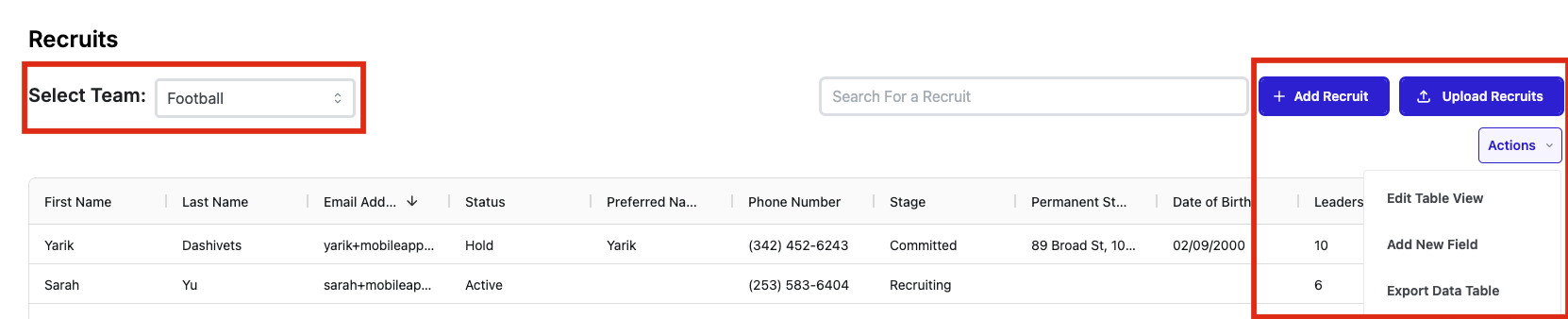
- Here you will access the recruit table and all of your options

- Select a team: Choose a team from the dropdown if you manage more than one.
- Add a Recruit: Quickly add a new recruit to your table
- Upload Recruits: Efficiently upload multiple recruits at once using the bulk upload tool. Click here to learn more about Adding Recruits to the Platform.
- Actions: Click actions to bring up a menu where you can:
- Edit the current table view
- Add a new field
- Export the current table view
- Toggle Between Saved Views: Select a saved view to display
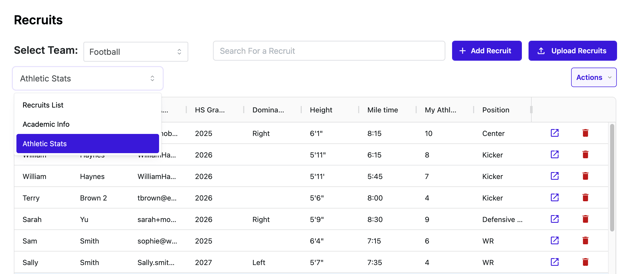
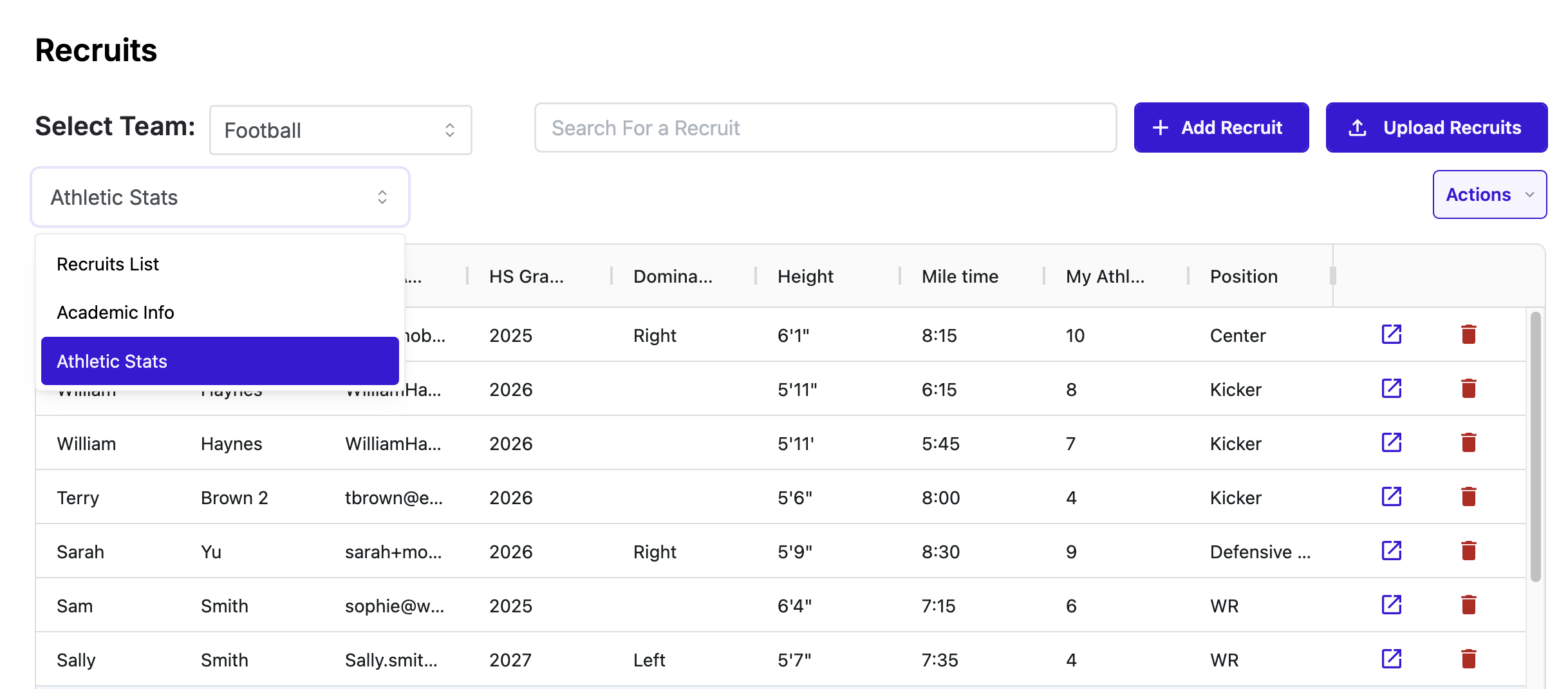
Customize the Table
- Add and Arrange Columns: Tailor the Recruit Table to fit your needs by adding any columns you'd like. You can also rearrange columns to prioritize the data points that matter most to you, ensuring that your most critical information is front and center.
- Use the Edit Table View button in the Actions menu to add new fields and then drag and drop columns to rearrange them
-gif.gif?width=688&height=387&name=10424%20Recruit%20Table%20KB%20(Custom%20Fields)-gif.gif)
- Use the Edit Table View button in the Actions menu to add new fields and then drag and drop columns to rearrange them
- Create Custom Fields: If there's a specific field or data point you want to track that isn't available by default in the system, you can easily add a custom field. This flexibility allows you to personalize the Recruit Table to reflect your unique recruiting process and data requirements.
- Use the Add New Field button in the Actions menu to easily add a new data field. This field will automatically add to your recruit table view. Double click in the table to start inline editing the new field and adding information.
.gif?width=688&height=387&name=10424%20Recruit%20Table%20(Add%20Custom%20Field).gif)
- Use the Add New Field button in the Actions menu to easily add a new data field. This field will automatically add to your recruit table view. Double click in the table to start inline editing the new field and adding information.
.gif?hsLang=en)
.gif?hsLang=en)
Sorting and Filtering
- Sort and Filter by Columns: The Recruit Table allows you to sort and filter your data by any column. You can easily organize your recruits by name, position, location, status, or any other data point to quickly find what you need.
.gif?width=688&height=387&name=Recruit%20Table%20(Sort%20and%20Filter).gif)
- Combine Searches and Filters: For more targeted searches, combine multiple filters to narrow down the data you're viewing. This helps you focus on specific groups of recruits and analyze your recruiting efforts more effectively.
.gif?hsLang=en)
Create and Save Custom Views
- Create, Save, and Toggle Between Custom Views: The Recruit Table view allows you to create and save multiple views and seamlessly switch between them to view different sets of information.
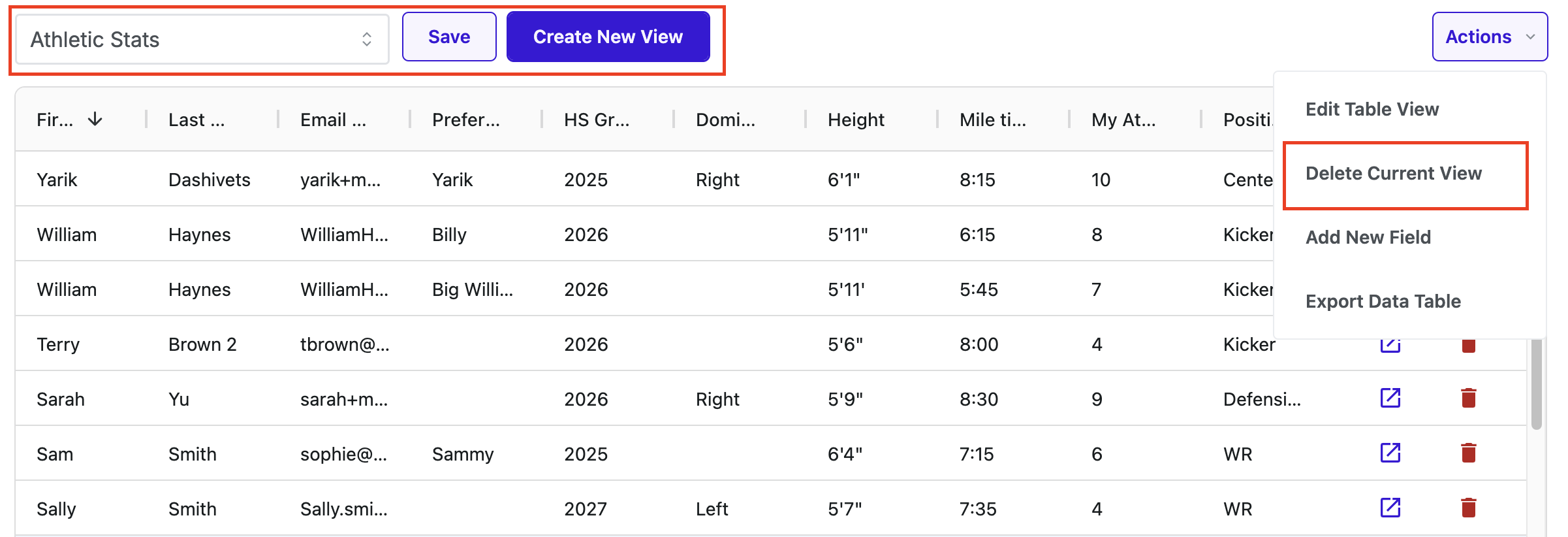
- In the Actions menu, use Edit Table View to add additional fields to the view. You will be presented with the option to Save the fields added to the current view selected OR Create New View.
- If you select Create New View, you will be prompted to assign a name to the new view.
- You also have the ability to Delete Current View from the Actions menu.
Additional Actions
- Quickly Add a Recruit: Need to add a recruit on the fly? Use the quick-add feature to enter new recruits into the database without leaving the Recruit Table view. This helps you keep your database up to date with minimal effort.

- Export Your Data View: Want to analyze your data outside of WinWon or share it with others? You can export the current view of your Recruit Table to a CSV file for further use.

- View Recruit Profiles: With a single click, you can access a recruit’s profile directly from the table.

- Easily Delete a Recruit: Should you need to remove a recruit from your database, simply use the delete option directly from the Recruit Table. This ensures your data stays clean and relevant to your ongoing recruiting efforts.




By utilizing these features, you can effectively manage your Recruit Table in WinWon and keep your recruiting efforts organized and efficient!