![WINWON (Standard).png]](https://knowledgebasefaqs.winwontech.com/hs-fs/hubfs/WINWON%20(Standard).png?height=40&name=WINWON%20(Standard).png)
Managing Recruiting Groups
Recruiting Groups in WinWon allow you to categorize and manage your recruit pool more efficiently. By organizing recruits into groups, you can streamline your communication, track specific segments of recruits, and tailor your recruiting strategies. Here’s how to manage recruiting groups effectively in WinWon:
Types of Recruiting Groups
There are two types of groups you can create in WinWon: 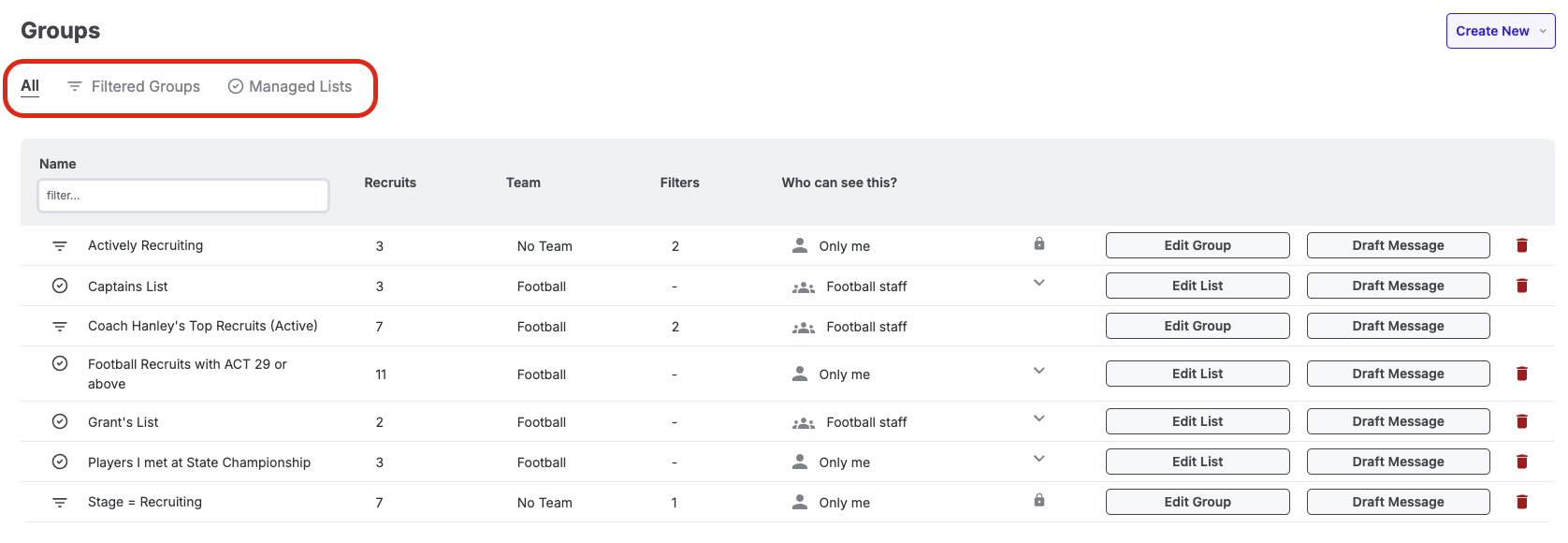
- Filtered Group: A filtered group is a dynamic selection of recruits that meet specific criteria defined by filters. For example, you could create a group for all 2026 graduates or recruits with a "recruiting stage" of "Prospecting." Filtered groups update automatically as recruits are added, removed, or updated in the system based on the filter criteria. This allows you to always have an up-to-date view of recruits that match your defined filters.
- Managed List: A managed list is a static group made up of recruits that you manually add or remove. Unlike filtered groups, managed lists do not change unless you make edits to them. This is useful when you want to create a focused list of recruits you are particularly interested in or manage a specific subset of recruits that require special attention.
Creating and Managing Recruiting Groups
There are two ways to create a recruiting group:
 Navigate to Recruiting > Groups in the sidebar navigation menu.
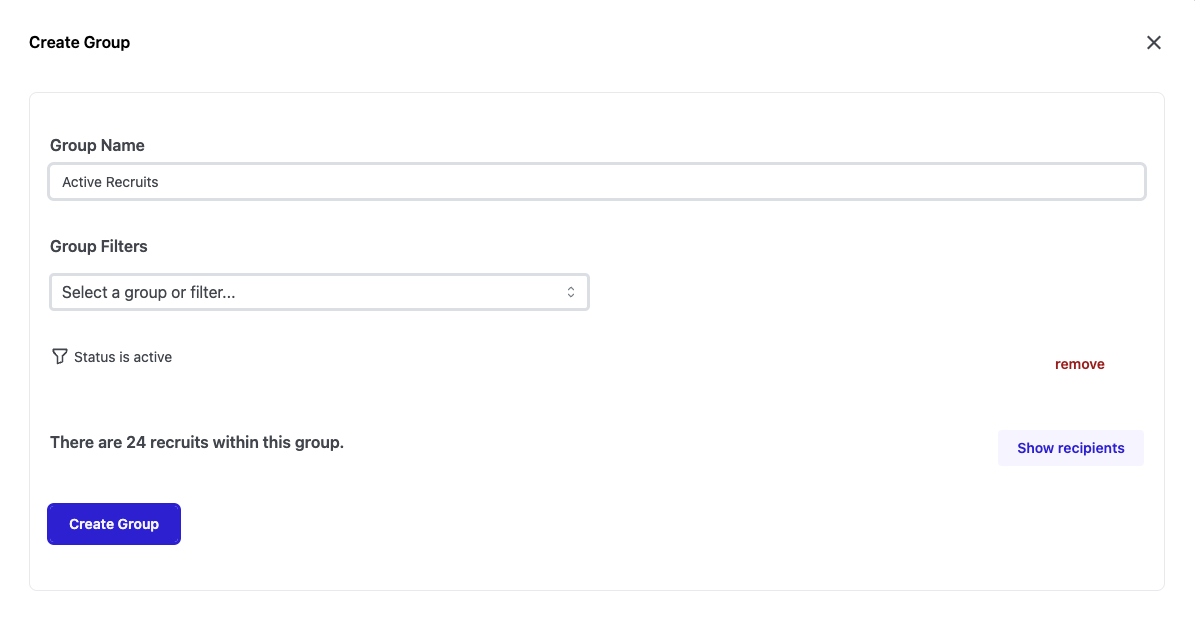
- Select Create New in the upper right corner. Select the type of group to create and add recruits or select filters to create your group.
OR
- Select Create New in the upper right corner. Select the type of group to create and add recruits or select filters to create your group.
- Navigate to Recruiting > Recruits to show the Recruit Table. Once there, filter by any criteria you would like, select the Actions menu, and then select Create Recruit Group.
- This groups is now a Managed List that can be found under Recruiting > Groups.
Group Access and Sharing
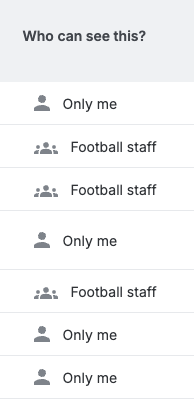
- Create Groups for Personal or Team Use: You have the flexibility to create groups for your personal use or share them with the entire staff of your team. Shared groups allow all team members to have a unified view and approach to specific segments of recruits, ensuring that everyone is aligned and up-to-date.
- Any viewer of the group can edit the list, but only the owner can share, make the group private, or delete the group.
Utilizing Recruiting Groups
Here are some powerful ways you can use groups to enhance your recruiting process:
- Sending Messages: Groups make it easy to communicate with specific segments of recruits. You can draft and send texts or emails directly to a group you’ve created, ensuring that your messaging is targeted and relevant.
- Sending Recruiting Questionnaires: You can also send recruiting questionnaires to a group of recruits. This is especially helpful when you want to gather information from a specific subset, such as recruits who have reached a certain stage in the recruiting process or those who fit a specific profile.
Learn more about using groups to Communicate with Recruits.
By effectively managing and utilizing recruiting groups, you can tailor your communication, streamline your efforts, and focus on the recruits who matter most to your program.