![WINWON (Standard).png]](https://knowledgebasefaqs.winwontech.com/hs-fs/hubfs/WINWON%20(Standard).png?height=40&name=WINWON%20(Standard).png)
Accessing the Event Requests Page
Only Calendar Administrators can access the Event Requests page.
- Navigate to Calendar > Event Requests.
- If you do not see this option, you do not have Calendar Admin privileges.
As a Calendar Admin, you can manage events for all teams.
Notifications and Reviewing Event Requests
- Admins receive a daily email digest with the count of pending event requests requiring attention.
- When single events or full schedules are submitted, they appear in the Event Request Queue, which offers two views:

- List View (default): Displays event details in a sortable, filterable table.
- Calendar View: Shows approved events with a solid outline and pending requests with a dashed line.
To adjust the view, toggle between List View and Calendar View in the upper right.
Event Requests Table
The Event Request table includes six sortable and filterable columns:

- Select Column: Select single, multiple, or all events for bulk review.
- Requested On: Displays the submission date of the event.
- Event Date & Time: Shows the requested event's date and time. Recurring events will include a toggle to view all occurrences.
- Team: Indicates the team requesting the event.
- Event Type: Lists the type of event.
- Location: Displays the requested event location.
Admin Review Actions
Admins have four main actions to take on each request: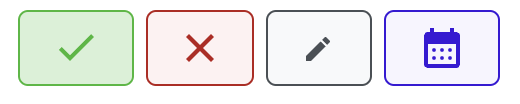
-
Approve (Green Checkmark):
- Confirm the event for approval.
-
Deny (Red X):
- Add optional notes for the submitter explaining the denial.
-
Edit (Gray Pencil Icon):
- Open the event details, make changes, add notes, and approve.
-
Review Conflicts (Purple Calendar Icon):
- Open a filtered view to manage conflicting events. This will automatically filter to the facility in conflict and show the conflicting event details.
Managing Recurring Events
- Recurring events are marked with a toggle in the Event Date & Time column,
 showing days like "Repeats Wed, Fri."
 - Expanding the toggle reveals all requested dates.
- Bulk approval is only available for the entire series of events, though individual events can be denied or edited prior to approval.

Event Conflicts
Conflicting events are flagged with a Red Banner in the Event Date & Time column, showing details of the conflict: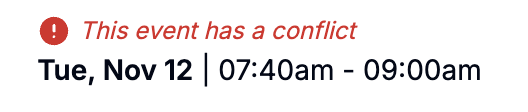
- Conflicts with other pending requests or approved events.
- For recurring events, the conflict count is displayed (e.g., "One date has a
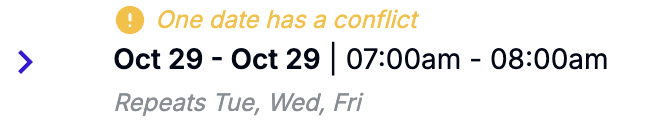 conflict").
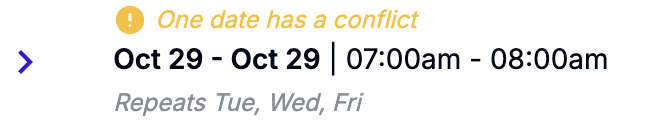
Clicking the purple calendar icon takes you to a day view of the conflicts, filtered by the facility in question, allowing detailed review.
Bulk Actions
Use the Select Column to: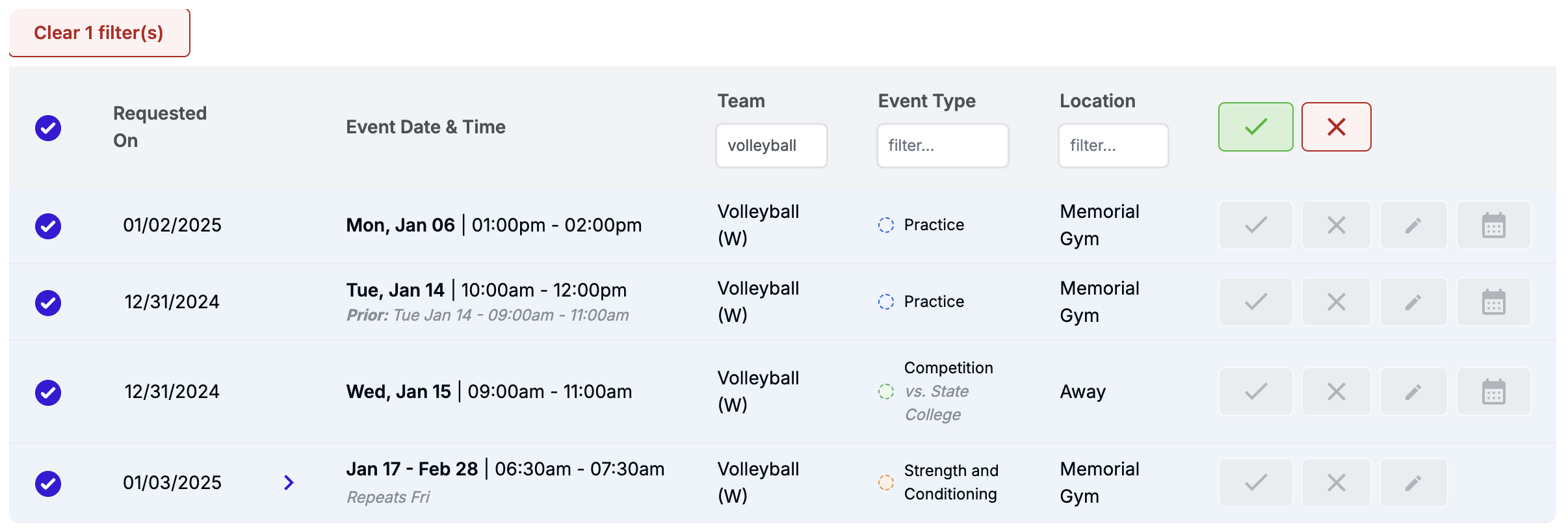
- Bulk approve or deny multiple events.
- Combine with filters (e.g., specific team or facility) to streamline reviews.
Leverage these tools to manage event requests effectively, ensuring accurate scheduling and seamless coordination across teams.