![WINWON (Standard).png]](https://knowledgebasefaqs.winwontech.com/hs-fs/hubfs/WINWON%20(Standard).png?height=40&name=WINWON%20(Standard).png)
🔁 Overview
-
Available to all WinWon users
-
Supports one-to-one messages and group channels
-
Accessible on both web and mobile
-
Real-time delivery and read indicators
-
Emoji reactions, threaded replies, message editing, and photo/file sharing
Please note that Chat does not include student-athletes. It is a private communication tool for WinWon coach and administrator accounts. Please refer to the Student-Athlete App information here to learn about communicating with student-athletes.
🖥️ Web App: How to Use In-App Chat
Accessing Chat
-
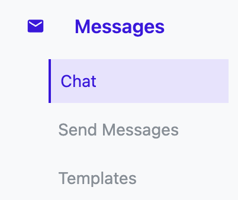
Navigate to Messages > Chat in the left sidebar.
-
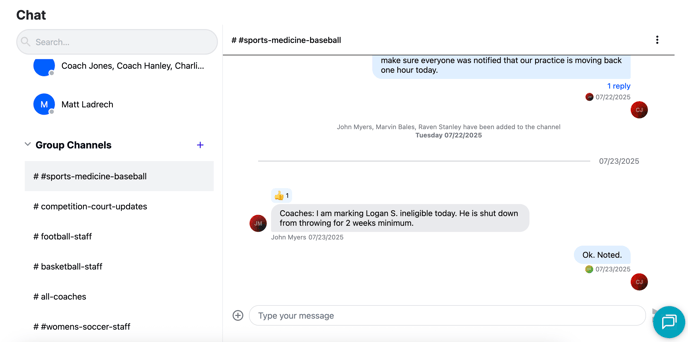
You'll see a panel listing all your current chat threads including:
- Direct Messages
- Group Channels
Types of Chats
WinWon Chat supports two types of conversations: Direct Messages (DMs) and Group Channels.
-
-
For one-to-one conversations or with a few people directly.
-
Once created, the members of a DM cannot be edited or changed.
-
Best for quick, private conversations.
-
-
Group Channels
-
Can be named (e.g., "compliance-team," "fall-season-planning").
-
Members can be added or removed over time.
-
To manage channel members, click the three-dot menu at the top of the channel.
-
Ideal for ongoing team communication or project-based collaboration.
-
👉 Creating a DM or a Channel is very similar. The only added step for a Channel is naming it during setup.
👉 Interaction is identical. Sending messages, reacting, replying, or sharing files works the same way in both DMs and Channels.
Starting a New DM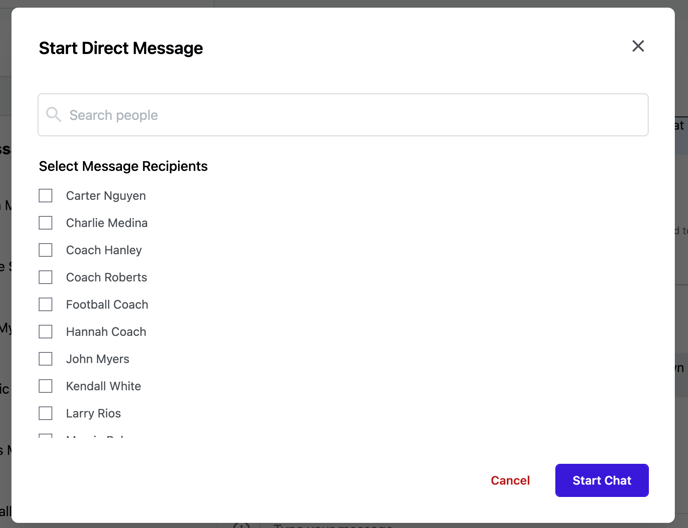
-
Click the ➕ (plus icon) next to Direct Messages to begin a new chat.
-
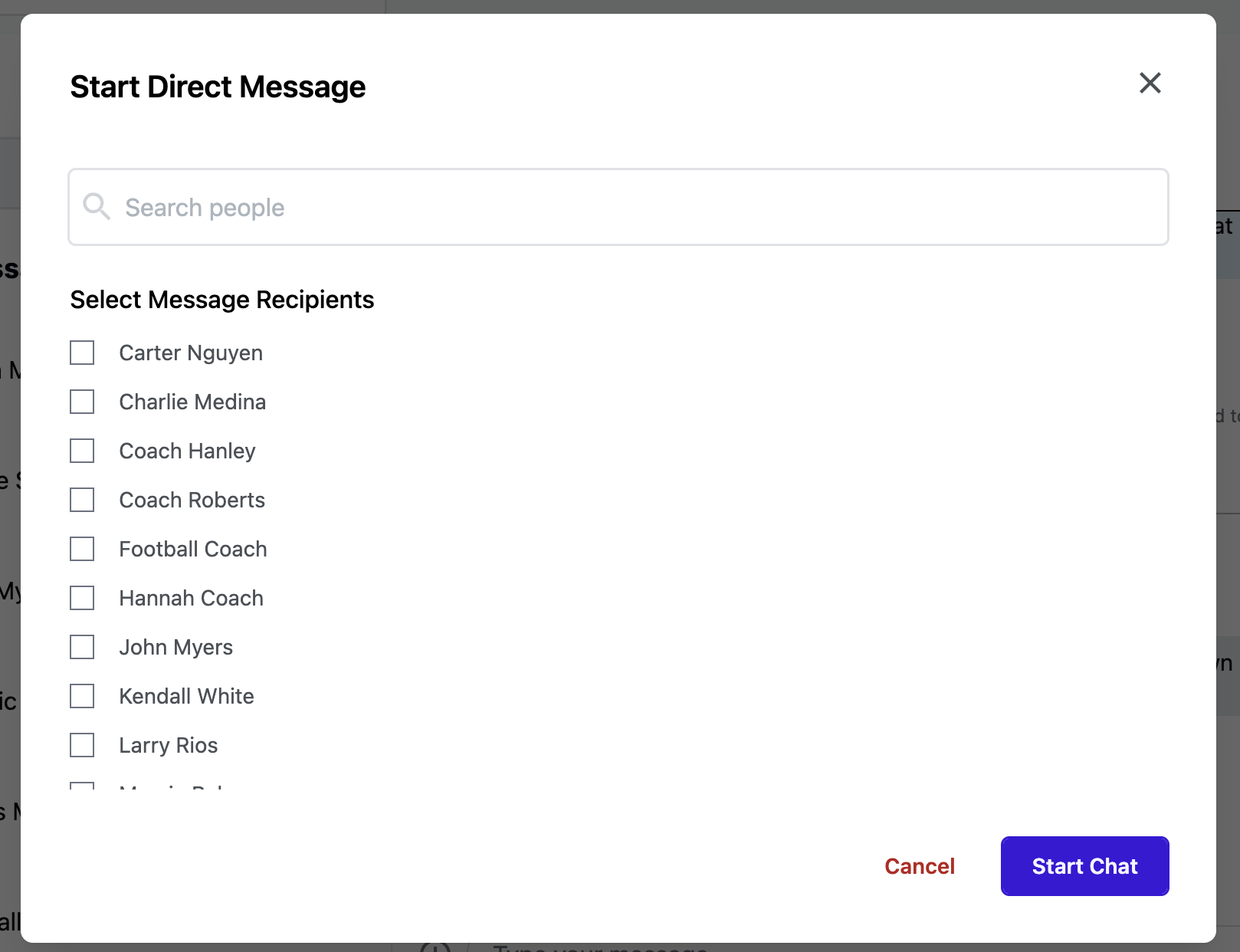
A modal will appear with a searchable list of users.
-
Select one or multiple people to include.
-
Click Start Chat to begin messaging.
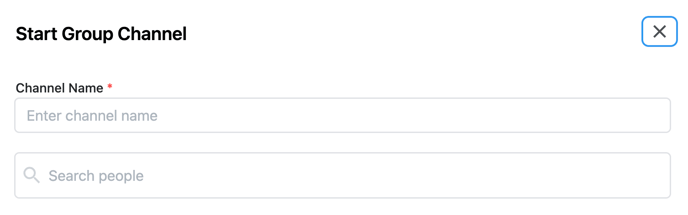
Starting a New Channel
-
Click the ➕ (plus icon) next to Channels to begin a new channel.
- Name your channel, and note that any spaces will be converted to "-"
-
Select one or multiple people to include.
-
Click Start Chat to begin messaging.
Navigating Chats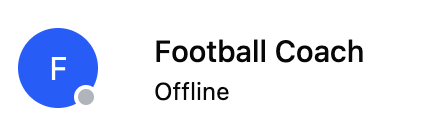
-
Each chat shows the participants' names at the top.
-
Online users display a green circle next to their name.
-
Use the search bar to quickly find existing chats.
Sending a Message
-
Use the message input box at the bottom of the chat window.
-
Attach files from your computer using the ➕ icon next to the input field.
-
Messages display:
-
✓ (single check) when delivered
-
✓✓ (double check with icon) when seen by others
-
Chat Actions (Hover for Options)
When you hover over a message, you can:

-
Reply in thread using the double arrow icon.
-
React with emojis using the emoji icon.
-
Edit or Delete (for messages you sent) via the 3-dot menu.
-
Edits can include updated text and retroactively attached files.
-
Edited messages display an Edited label.
-
Thread replies appear in a pop-out panel, and the main chat will show the reply count. Click to view or respond in thread.
Managing Unread Chats
-
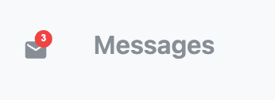
A red dot appears on the Messages icon in the sidebar for unread messages.
-
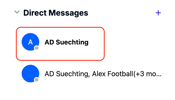 Unread chats will show in bold in the chat list.
 -
Click the chat to clear the notification.
📱 Mobile App: How to Use In-App Chat
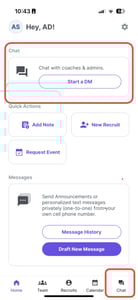
Accessing Chat
There are two main ways to open chat in the mobile app:
-
From the Home screen: Tap Start a DM under quick actions.
-
From the bottom menu: Tap Chat to view and manage all chats.
Starting a Chat
-
Tap the ➕ icon to begin.
-
Select one or multiple users from the list or use the search bar to find specific names.
-
Tap Start Chat to launch the conversation.
-
Online users show a green dot next to their name.
Chatting on Mobile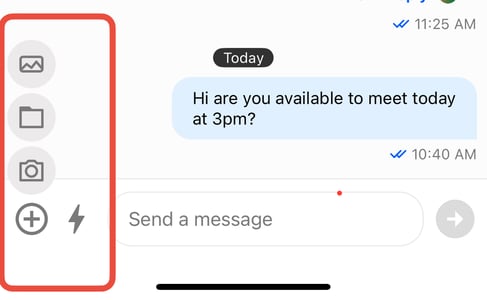
-
Inside a chat, tap the info i next to participant names to see all members.
-
Type your message in the input box.
-
Attach media using the ➕ icon :
-
📷 Photo icon to pick from your photo library
-
📄 File icon to attach files
-
📸 Camera icon to take and send a new photo
-
⚡️ Lightning bolt icon to send a GIF via Giphy
-
Message Status
-
✓ (single check) = delivered
-
✓✓ (double check) = seen
Additional Message Actions
To take action on a message:
-
Long press the message to:
-
Reply
-
Thread reply
-
Copy message
-
Edit message
-
Delete message
-
Add emoji reaction
-
-
Thread replies show a reply count badge. Tap to open and respond.
Emoji Reactions
-
Tap an emoji above a message to see who reacted.
-
Long press to add your own from the available set.
Managing Unread Chats and Notifications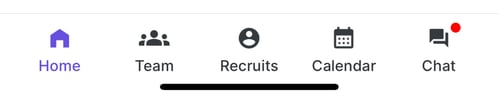
To make sure you never miss a message, enable push notifications in the mobile app. This will send you instant alerts for any new chats.
-
App Icon Alerts: A red dot will appear on the Chat icon in the bottom menu whenever you have new messages.
-
Inside Chat: Unread conversations are highlighted with a red bubble. Simply tap the chat to open it and clear the notification.
💬 Quick Recap
| Feature | Web App | Mobile App |
|---|---|---|
| Start chat | Messages > Chat > ➕ | Home > Start Chat OR Chat tab > ➕ |
| Thread replies | Hover > Reply in thread | Long press > Thread reply |
| Edit or delete message | Hover > 3-dot menu (your messages only) | Long press > Edit/Delete (your messages only) |
| Attach files or media | ➕ next to message input | 📷, 📄, 📸, ⚡️ icons near input field |
| Emoji reactions | Hover or tap emoji icon | Long press > emoji set |
| Unread message indicator | Red dot on Messages in sidebar | Red dot on Chat icon in bottom menu |
Want to learn more? Check out our guide on Best Practices and Recommended Channel Setup.