![WINWON (Standard).png]](https://knowledgebasefaqs.winwontech.com/hs-fs/hubfs/WINWON%20(Standard).png?height=40&name=WINWON%20(Standard).png)
How Athletes Receive Forms
Student athletes get form requests in two ways:
-
Email
-
A message is sent to the athlete’s school email address with a unique link to the form.
-
The email is personalized with their name and your school name.
-
Athletes click the link to open the signing experience and complete the form.
-
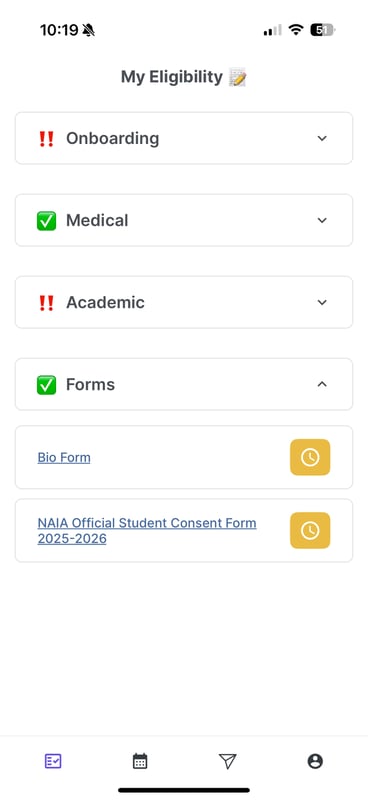
Mobile App (recommended)
-
Student can open the WinWon Athlete App → My Eligibility (checklist icon) → Forms section.
-
All outstanding forms appear here with links to open and sign directly from the device.
-
Completing a Form (Step by Step)
-
Open the link from email or tap the form in My Eligibility → Forms.
-
Review the document and required fields.
-
Fill in any fields the signer is responsible for (e.g., initials, text fields, checkboxes).
-
Apply signature where prompted, then Submit/Finish.
-
Confirmation is shown on submit; the form is automatically routed and stored in WinWon.
-
If multiple signatures are required (e.g., student + parent/guardian), WinWon routes the form to the next signer automatically.
-
If the student is part of a multi-sport roster, they will not receive duplicate requests for the same form.
After Submission
-
The form will appear with a green check from the student’s Forms list in the mobile app once their portion is complete.
-
If additional signers (e.g., a parent/guardian) are still pending, the overall form will remain in progress until all signatures are collected.
-
Staff can see completion status and download the signed PDF in Forms → Form Tracker and on the athlete’s Documents tab on the web application.