![WINWON (Standard).png]](https://knowledgebasefaqs.winwontech.com/hs-fs/hubfs/WINWON%20(Standard).png?height=40&name=WINWON%20(Standard).png)
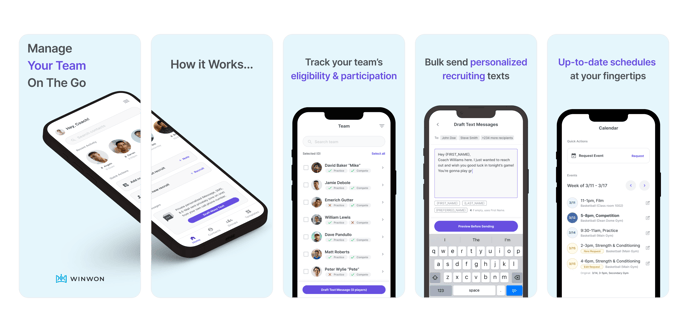
Accessing the Mobile App

- Your login for the mobile app is the same as the web application.
- If your institution uses Single Sign On practices, you will be prompted to login with your institutions SSO.
- If not, enter the email associated with your account. (This is likely your institution email, but please check with an administrator if you are unsure.)
- Use the forgot password option to get a password reset link via email.
- Follow the instructions and reset your password.
- Navigate back to the mobile app and login using your email and password.
Navigating the Mobile App (iOS)
Home Page
Quick actions
- Add a Note about a Recruit: Need to capture important details after meeting with a recruit or watching them play? Use the mobile app to quickly add a note to any recruit's profile. This ensures you keep track of conversations and important details without missing a beat.
- From the Home Page and under Quick Actions, select Add note about recruit. Select a recruit and record your note.
%20KB.gif?width=225&height=400&name=Add%20a%20Note%20for%20Recruit%20(Mobile)%20KB.gif)
- Add a New Recruit: Easily add new recruits on the go by entering their information into the app. This feature is perfect for capturing prospects' details during events or meetings.
- From the Home Page and under Quick Actions, select Add new recruit. Add your recruit information and save.
%20KB.gif?width=225&height=400&name=Add%20a%20New%20Recruit%20(Mobile)%20KB.gif)
- From the Home Page and under Quick Actions, select Add new recruit. Add your recruit information and save.
- Request an Event: Quickly request and event on the go and always stay on top of your calendar.
- From the Home Page and under Quick Actions, select Request Event. Add your event details and submit.
%20KB.gif?width=225&height=400&name=111%20Request%20Event%20(Mobile%20ios)%20KB.gif)
- From the Home Page and under Quick Actions, select Request Event. Add your event details and submit.
%20KB.gif?hsLang=en)
Messages
- Draft a New Message: Text recruits or your student athletes individually or in groups. Send individual or mass one-to-one text messages to your recruits and team directly from your personal number. Whether you’re sending a quick follow-up to a recruit or updating the team on a practice change, the mobile app makes communication seamless.
- From the Home Page, click Draft New Message. In the To: line at the top, use the + to select recipients for your message.
- From the top, select Team, Recruits or Groups.
- Team will show you all student athletes on your team and allow you to select all or select some to message. Recruits will show you all recruits in your database and allow you to select all or select some to message. Groups will allow you to select one or more already created team or recruit group to message. Click here to learn more about Creating Recruit Groups and Creating Team Groups.
- Click Continue Drafting to enter the message screen. Start typing your text in the box provided or use Apply a Template. See below in this article to learn about creating text message templates.
%20KB.gif?width=225&height=400&name=Draft%20and%20Send%20a%20Message%20(Mobile)%20KB.gif)
- You can personalize your message with the variables First Name, Last Name, and Preferred Name. This will input and personalize these values for each recruit or student in your message. If you select Preferred Name and a recruit or student does not have this field populated, it will default to using First Name instead.
- You can utilize Emojis and Photo/Video media in your text messages.
- When you are done drafting, click Preview Before Sending. This will open a message preview to each recruit or student in iMessage. If you used a personalized variable, it will show that value here. Review, make any changes, and send your text message.
- If you are sending more than one text, each additional message will pop up in iMessage for you to review and send.
- When all messages are complete, you will return to the WinWon app and see a summary of the number of successful texts sent or failed or canceled messages.
%20KB.gif?hsLang=en)
Please Note: Each text message you send will come from the number you are using the WinWon Mobile App on. Each message is a one-to-one text. You are able to draft a message to multiple recipients at once, but it is NOT a group text.
- Message History: On the Home Page, access Message History to view your text history, including recipients, date and time sent, and any failed or canceled messages.
- Text Message Templates: Save time by building text templates for messages you frequently send to recruits and students. With customizable templates, you can maintain consistency in your communication while speeding up the process.
- To create and manage text templates, go to Draft New Message from the Home Page.
%20KB.gif?width=225&height=400&name=Create%20a%20Text%20Template%20(Mobile)%20KB.gif)
- Select Apply Template in the message drafting space. From here you can edit an existing template from the pencil icon or build a new template with the + icon.
- To delete a template, click the pencil icon, and then the trash can icon to delete.
- To personalize a template, use the variables First Name, Last Name, and Preferred Name. This will input and personalize these values for each recruit or student in your message. If you select Preferred Name and a recruit or student does not have this field populated, it will default to using First Name instead.
- To create and manage text templates, go to Draft New Message from the Home Page.
%20KB.gif?hsLang=en)

Team Page
Student Profiles and Eligibility Management
- View and Update Student Profiles: Access and update your student athlete's profiles on the go. Review key eligibility information, make updates to their details, and track participation directly from your mobile device.
%20KB.gif?width=225&height=400&name=111%20Student%20Profile%20(Mobile%20ios)%20KB.gif)
- Click the Team page in the bottom navigation bar.
- From here see a list of all of your student athletes at a glance and their eligibility to Compete and Practice. Use the arrow next to a student to go into their profile.
- In the Profile, you can scroll through the data categories at the top. Update any information you would like.
- Easily see student's Eligibility status and what pieces they might be missing to be cleared to compete and practice in the Eligibility section. Expand each checklist to see what pieces need to be completed.
- See Eligibility directly from the student athlete list on the Team page.

Recruits Page
Recruit Profiles and Status Management
- View and Update Recruit Profiles: Access and update your recruits' profiles on the go. Review key information, make updates to their details, and track progress directly from your mobile device.
- Click the Recruits page in the bottom navigation bar.
%20KB.gif?width=225&height=400&name=Update%20and%20View%20Recruit%20Profile%20(Mobile)%20KB.gif)
- From here see a list of all of your recruits at a glance and their Stage and Status. Use the arrow next to a recruit to go into their profile.
- In the Profile, you can scroll through the data categories at the top. Update any information you would like.
- Update Stage and Status using the drop down options at the top
- Delete a recruit with the Trashcan icon in the upper righthand corner.
- Click the Recruits page in the bottom navigation bar.
- See Recruiting Stage and Status: Stay informed by quickly checking the stage and status of your recruits. Whether they’re in the "Offer Sent" stage or have committed, you can keep track of where each recruit stands in the process at a glance.
- See Stage and Status directly from the recruits list on the Recruits page.
%20KB.gif?hsLang=en)

Calendar Page
Submit and Manage Events
- View Your Team's Calendar of Events: Access and update your team's calendar on the go.
%20KB.gif?width=225&height=400&name=111%20Calendar%20Page%20(Mobile%20ios)%20KB.gif)
- Click the Calendar page in the bottom navigation bar.
- From here see a list of all events for your team in the current week. If you coach more than one team, you can toggle between teams at the top.
- Newly submitted requests will appear in yellow with "New Request" indicating they are still under review by administrators.
- Easily scroll between weeks with the arrows at the top.
- Submit a new event using the plus icon in the upper right. Input details and submit.
- View additional event detail, delete an existing event, or make changes with the pencil icon.
Additional Features
Engage with Potential Recruits
- Show a QR Code for Recruiting Questionnaires: When interacting with a potential recruit, you can present a QR code that they can scan to instantly access and complete your recruiting questionnaire. This facilitates quick and seamless data collection during face-to-face meetings.
- To access the QR code, click Add New Recruit from the Home Page.
%20KB.gif?width=225&height=400&name=QR%20Code%20for%20Questionnaite%20(Mobile)%20KB.gif)
- In the upper righthand corner, click the QR Code symbol, to load the QR code for your team. Recruits can scan the code from here, you can use the Print icon to print a copy to display, or use the Message icon to text the link to a recruit to fill out.
- To access the QR code, click Add New Recruit from the Home Page.
%20KB.gif?hsLang=en)
Please Note: To edit the content and layout of the Recruiting Questionnaire, please visit the WinWon web app at app.winwontech.com. Click here to learn more about Building and Customizing a Recruiting Questionnaire.
- Text a Recruit a Link to the Questionnaire: Need a recruit to fill out your questionnaire after a conversation? You can send them a direct link to the recruiting questionnaire via text. This helps streamline the information-gathering process and ensures you get the details you need quickly.
- To access the QR code, click Add New Recruit from the Home Page.
- In the upper righthand corner, click the QR Code symbol, to load the QR code for your team. Use the Message icon in the middle to text the link to a recruit to fill out. You can send to an individual recruit or a group!
With the WinWon mobile app, you can efficiently manage your team, recruiting efforts, calendar, and keep track of key data—all from your phone!