![WINWON (Standard).png]](https://knowledgebasefaqs.winwontech.com/hs-fs/hubfs/WINWON%20(Standard).png?height=40&name=WINWON%20(Standard).png)
What the Forms Tool Does
WinWon’s Forms feature allows your athletic department to send, track, and store e-signature forms directly in the platform. Forms can be as simple as a single student signature or as complex as requiring multiple signatures from individuals such as a parent/guardian, coach, or athletic director.
Access & Permissions
-
Who can send forms?
Only platform users with Administrator permissions can view form templates and send e-signature forms.-
Coaches or other users with access to a specific team will be able to see all forms sent for that team, along with statuses and completed documents — but cannot initiate sending unless they are given administrator permissions.
-
-
 Where to access forms
On the WinWon web application:
Forms: Student vs. Recruit
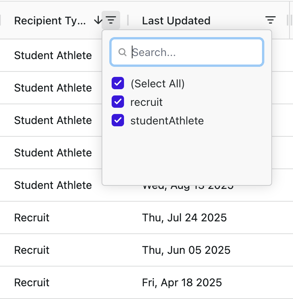
Some forms may be sent to student athletes (on an active roster) or recruits (in the recruiting database). The Recipient Type column in Forms List will indicate the audience for each form template.
How Forms Are Organized
In Forms List, you can filter or search for a specific form in several ways:
-
Recipient Type – Filter for Student Athletes or Recruits.
-
Form Template Name – Search or filter by the form’s name.
-
Search Bar – Quickly search across all columns.
Template Actions
For each form template in the Forms List table, you’ll see:
-
Form Template Name – The title of the form.
-
Team – The team associated with the form, if applicable.
-
Recipient Type – Student Athlete or Recruit.
-
Last Updated – Date the template was last modified.
-
Action Icons:
-
View – Opens a PDF preview of the form with sample data.
-
Send – Starts the send process (if the form is eligible for bulk send).
-
Send Button Logic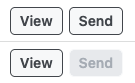
-
Clickable Send Button – Indicates the form can be bulk-sent from Forms List. This is typically the case for single-signer forms (student athlete only).
-
Greyed-Out Send Button – Indicates the form requires additional signature configuration (e.g., parent/guardian). These must be sent individually or using the special process for minors. See Sending Forms to Individuals & Minors for more.
PDF Preview
When you click View, a PDF opens in a new browser tab. This shows a sample version of the form with placeholder data so you can see how the completed document will look.