![WINWON (Standard).png]](https://knowledgebasefaqs.winwontech.com/hs-fs/hubfs/WINWON%20(Standard).png?height=40&name=WINWON%20(Standard).png)
Who Has Access to Participation Tracking?
- Only users with General Administrator permissions can access admin level Participation Tracking for all teams.
- Learn more about Participation Tracking for Coaches on the WinWon Calendar.
- Permissions for Medical, Academic, Onboarding, and Participation eligibility are managed independently. If you do not see the Participation Tracking section in your eligibility center, you do not have this permission.
- Learn more about Settings and Permissions.
Accessing Participation Tracking
-
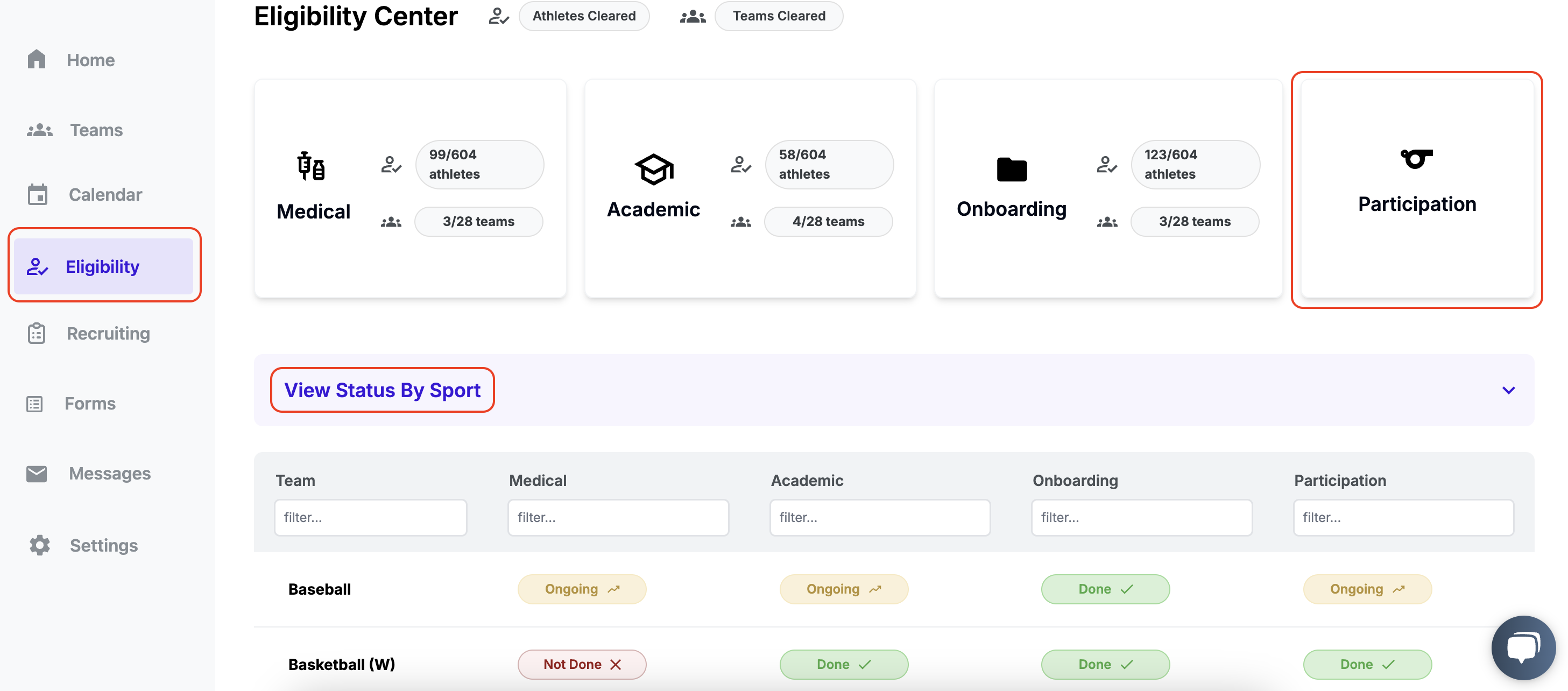
Navigate to Eligibility in the side panel.
-
Select the Participation card.
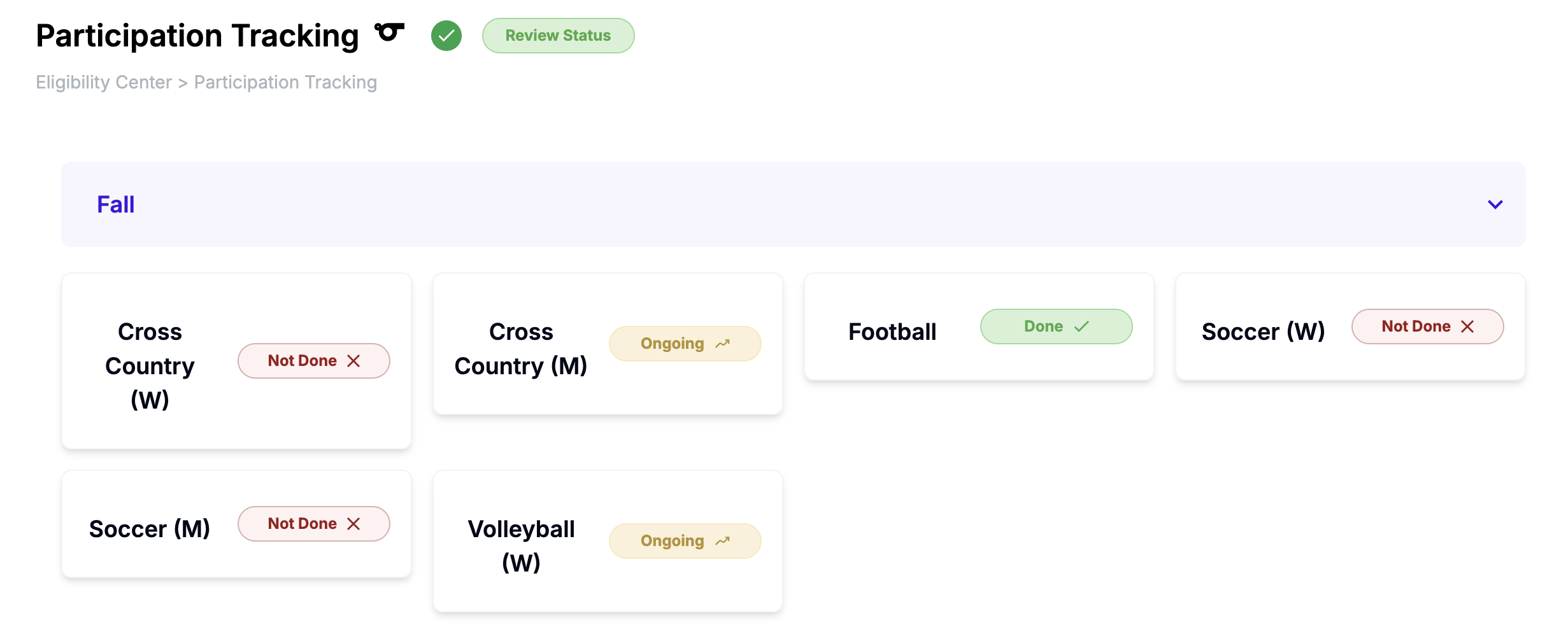
- Below, toggle View Status by Sport to see participation review statuses for each team.
-
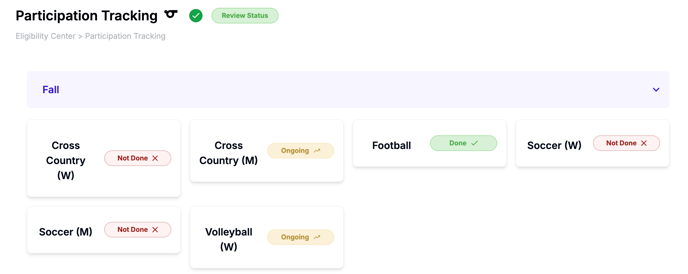
Click the Participation card and then on a specific Team card to manage its participation tracking.
Navigating the Participation Tracking Table
Each team’s Participation Tracking page includes:
- Select Team: Allows users to quickly navigate between teams.

-
Header Banner: Displays the academic year, roster status, and participation tracking review status.

- Roster Status: Indicates if a coach has confirmed the team roster. This ensures participation is tracked only for confirmed rosters. Learn more about Confirming Rosters.
-
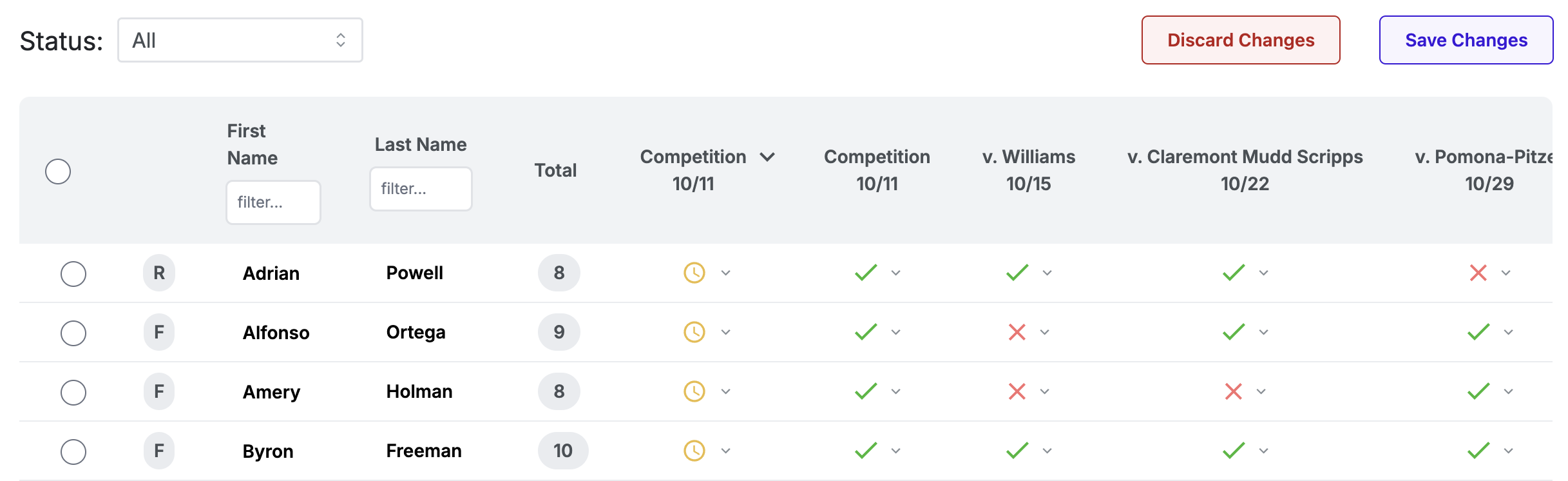
Participation Table:
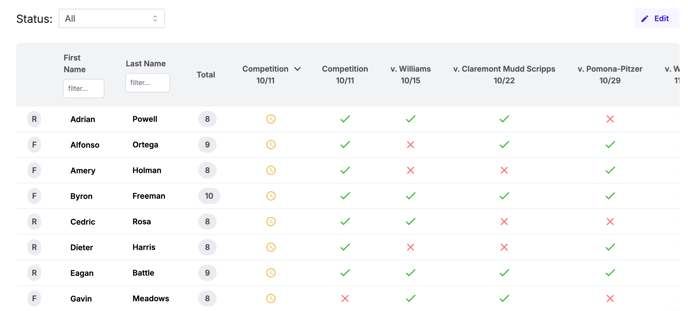
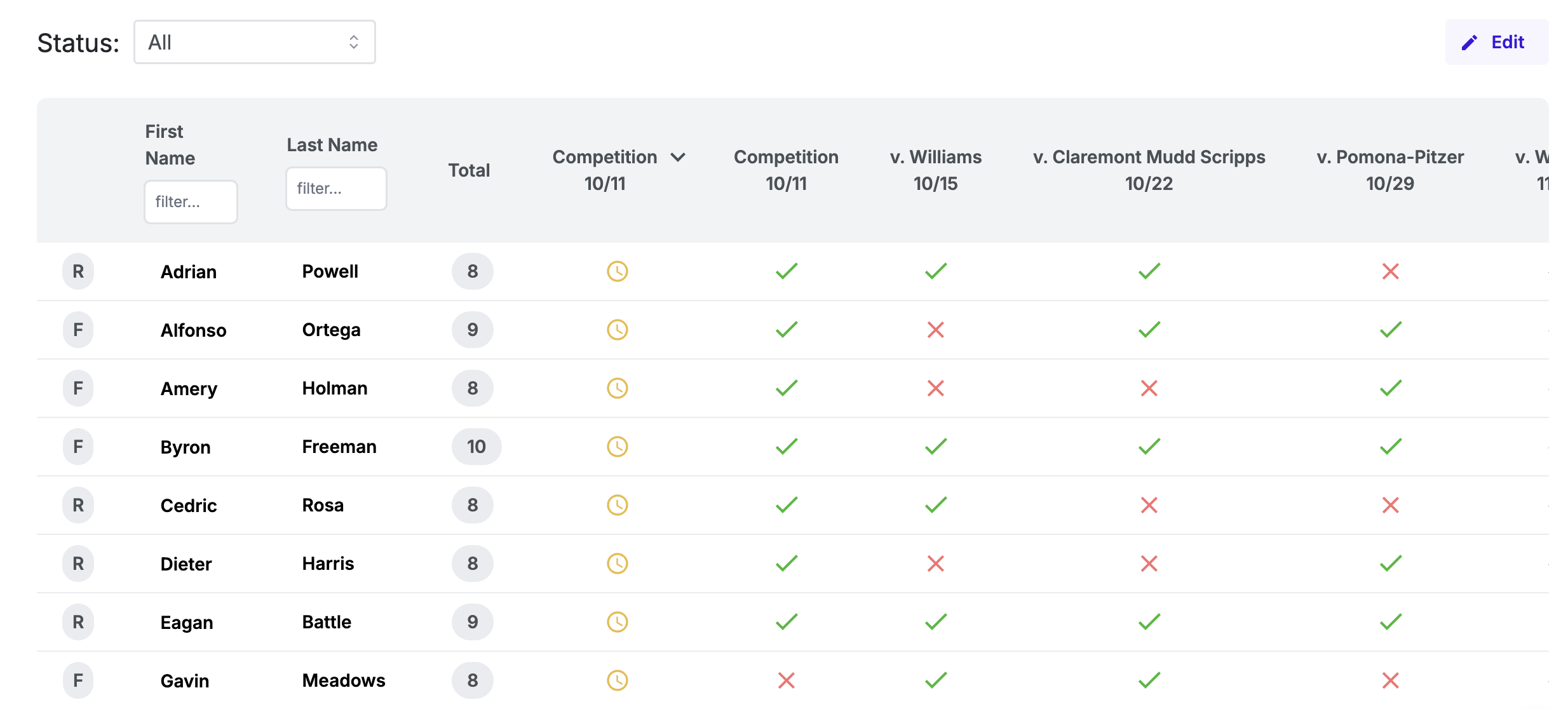
- Each competition appears as a column where participation is managed for individual athletes.


-
- The table includes all competitions listed on the WinWon calendar for the season and the selected team.
- Competition events created with opponents entered will display as "v. [Opponent Name] [Date]" (e.g., v. WinWon University 11/15). If no opponent is entered, the event will display as Competition [Date].
- Use filters to organize data:
- Status bar: Filter by first-year, returning, or transfer athletes.
- Column filters: Filter by first or last name.
- Sort columns by clicking the column header.
- The Total column shows the total number of competitions for the athlete.
Understanding Participation Statuses
Each athlete can have one of three statuses for each competition:
- Green Check: Indicates the athlete participated (user-generated).
- Red X: Indicates the athlete did not participate (user-generated).
- Yellow Clock: Indicates participation has not yet been managed (system-generated).
Participation Count:
- The total participation count includes all green checks and yellow clocks.
- Participation is automatically counted until a user explicitly selects a "yes" (green check) or "no" (red X).
Editing Participation Tracking
 Enter Edit Mode: Click the Edit button in the upper-right corner of the page.
- Update Participation Status:
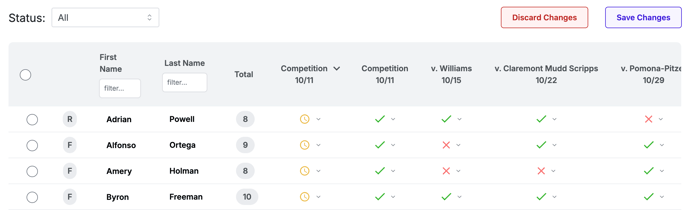
- Click on individual cells to update values.
- Use the far-left column to bulk update multiple athletes.
- Save Changes: Click the Save Changes button at the top, or select Discard to revert edits.
- Update Team-Level Review Status: Adjust review status as necessary while in edit mode.
Viewing Individual Athlete Participation
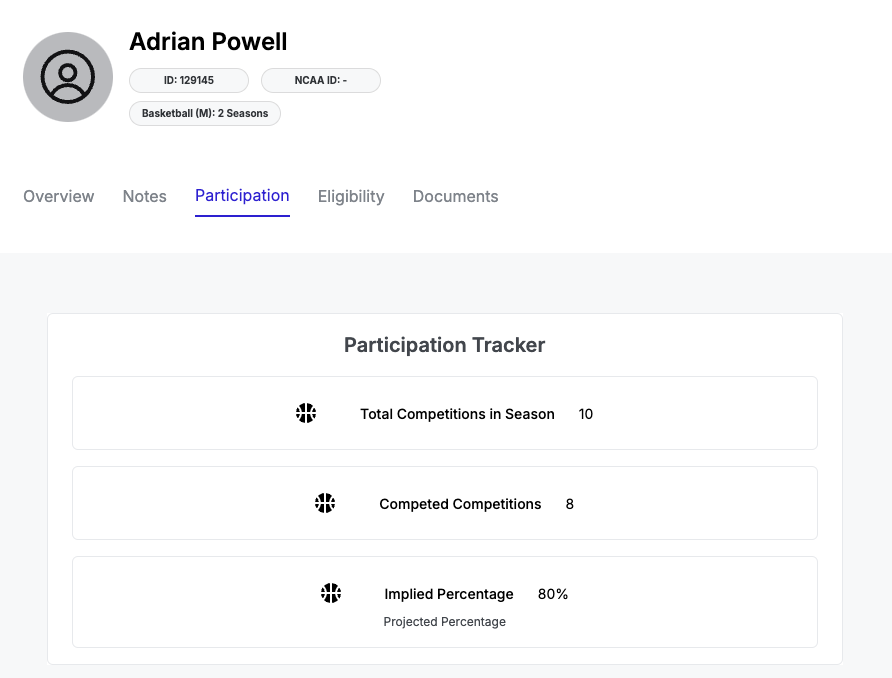
- From the Participation Tracking table, click on an athlete’s name to navigate to their Student Profile and view their participation information.
Understanding Participation Tracking for Coaches
Coaches can view and manage participation tracking in two key areas:
- Student Athlete Profile: Coaches can view individual athletes’ participation records in the Participation Tab.
- Calendar Events: Coaches can manage participation directly on competition events within the calendar. Learn more about Participation Tracking on the WinWon Calendar (Coaches).
WinWon’s Participation Tracking ensures that teams maintain compliance while providing a streamlined process for managing athlete involvement. For assistance, reach out to your WinWon contact or Support team.