![WINWON (Standard).png]](https://knowledgebasefaqs.winwontech.com/hs-fs/hubfs/WINWON%20(Standard).png?height=40&name=WINWON%20(Standard).png)
Access
Coaches have access to the Recruiting tab within the Settings page.
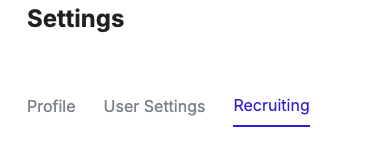
To navigate:
- Click Settings in the side panel.
- Select Recruiting from the menu.
If you do not see the Recruiting option, you do not have Coach privileges to manage and customize recruiting stages for a team.
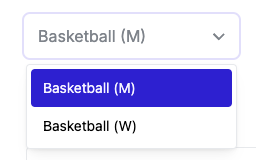
If you coach multiple teams, use the team selection drop-down menu to switch between teams.
Managing Recruiting Stages
WinWon provides five predefined Recruiting Stages:
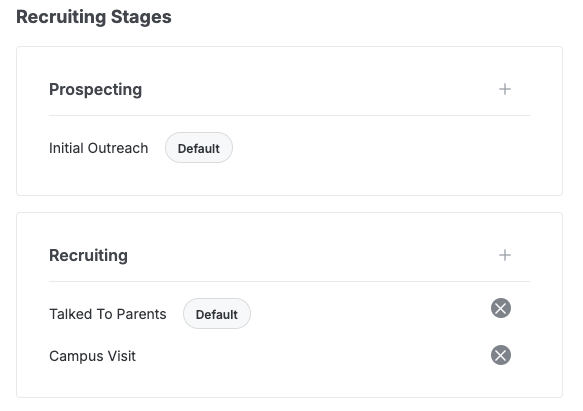
- Prospecting
- Recruiting
- Offered
- Attending
- Not Attending
Each stage can have customizable sub-stages, allowing teams to manage their recruiting pipeline effectively.
Adding & Deleting Sub-Stages
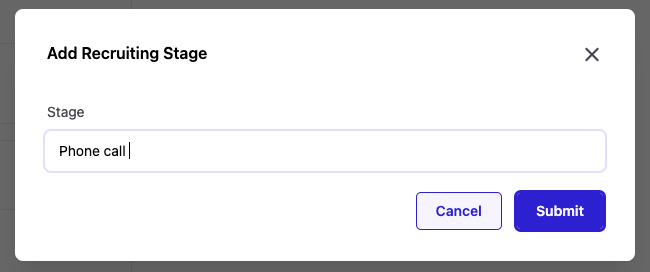
- Add a Recruiting sub-stage: Click the plus (+) icon, enter the sub-stage name, and submit.

- Delete a Recruiting sub-stage: Click the gray (X) icon next to the sub-stage name.
- If recruits are currently assigned to that sub-stage, you will receive a warning and must reassign them before deleting the stage.

- If no recruits are in the sub-stage, you can confirm deletion immediately.

- If recruits are currently assigned to that sub-stage, you will receive a warning and must reassign them before deleting the stage.
Important Notes
- Recruiting Stages apply at the team level, not to individual users.
- Any changes made to a team’s recruiting stages will apply to all staff members associated with that team.
- For example, if a coach modifies the Football team’s recruiting stages, all Football staff will see the update.
With customizable Recruiting Stages, you can structure and manage your recruiting pipeline in a way that best fits your team’s needs.