![WINWON (Standard).png]](https://knowledgebasefaqs.winwontech.com/hs-fs/hubfs/WINWON%20(Standard).png?height=40&name=WINWON%20(Standard).png)
Using the WinWon Schedule Builder
The WinWon Schedule Builder allows users to drag and drop events into the calendar for their assigned teams and submit them for approval.
How to use the Schedule Builder:
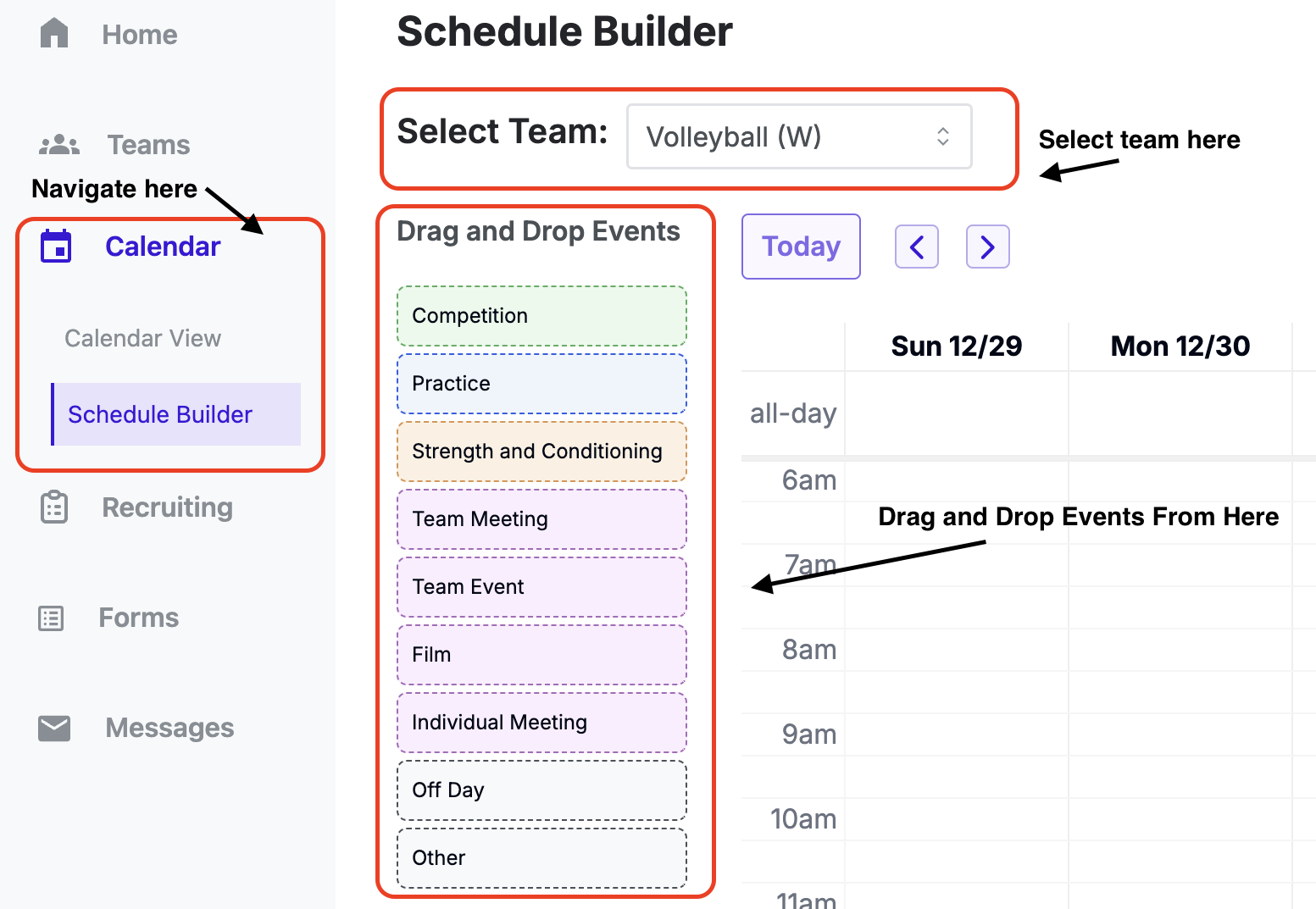
- Navigate to: Calendar > Schedule Builder in your WinWon account.
- Select a Team: Choose your team from the dropdown if you manage more than one.
- Drag and Drop Events: On the left, you’ll see a color-coded list of event types. Drag an event to the desired day.
- Customize Event Details: A pop-up will appear where you can:
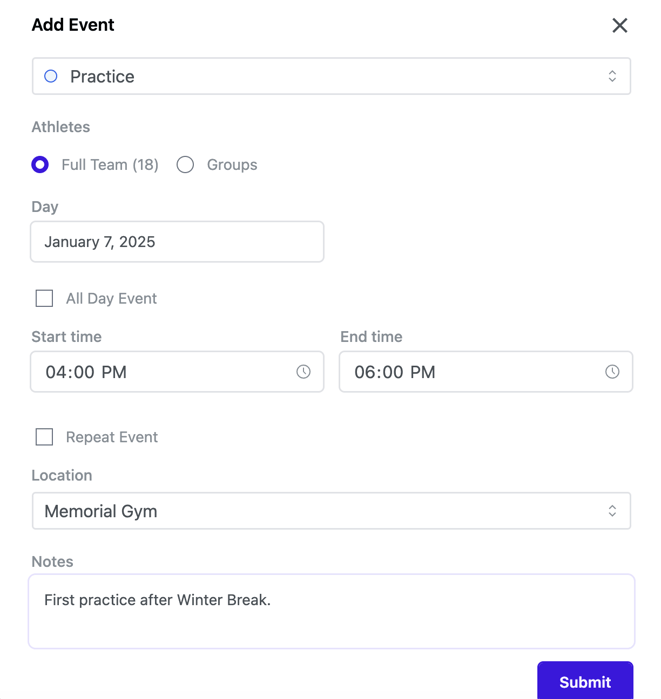
- Adjust event type (practice, competition, etc.)
- Select if it’s for the full team or a group
- Adjust the day of the event or mark it as all-day
- Choose a start and end time
- Select if the event is a recurring / repeating event, if needed
- If the event is recurring, you will need to select which days the event repeats on and the end date the event should stop occurring
- Add location and any notes
- Add More Events: Add as many events to your schedule as you like before you submit. This tool is designed to allow you to play with building your schedule before submitting it.
- Submit Events: When done, click “Submit request.” If not done, a yellow banner at the top of the screen will indicate you have events that need to be submitted. Continue adding more events to your schedule or submit when finished.

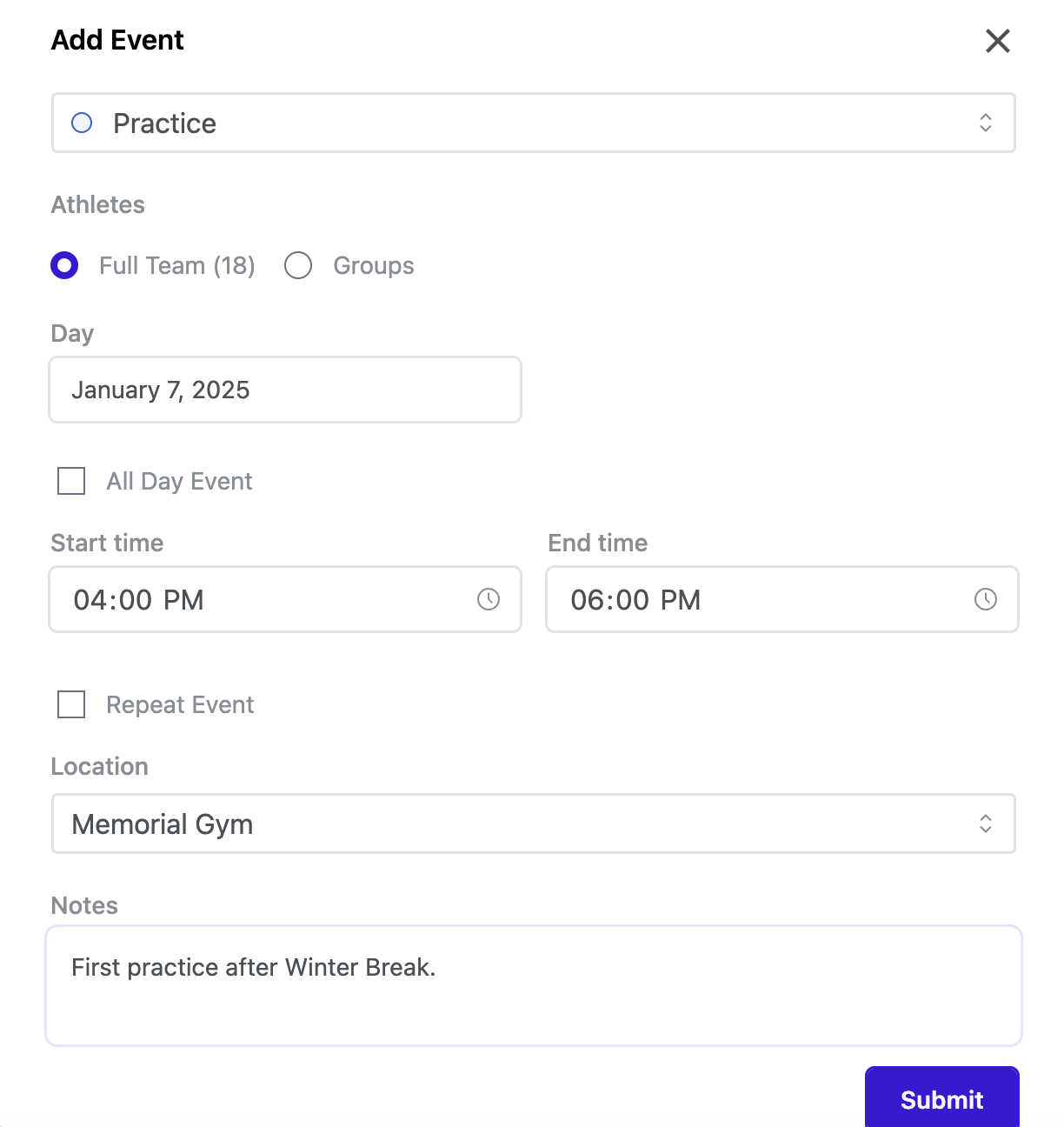

Note: The Schedule Builder is designed to save your progress as you add events to the schedule. This allows you to build part of a schedule, navigate away, and come back where you left off. Events do NOT need to be submitted to save. All progress will save as you add events.
Event Status: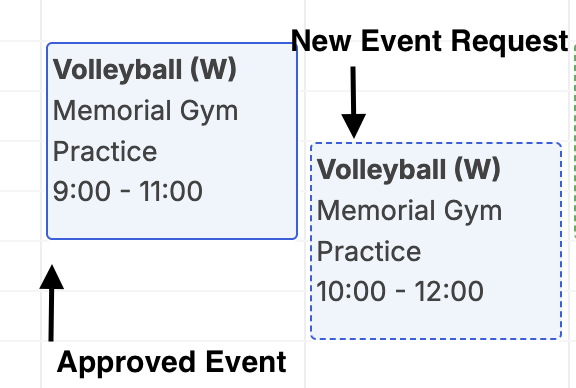
- New Request or Change Requested : Newly submitted event requests or change requests will appear with a dashed box, indicating they are pending approval.
- Approved Events: Once approved, events will show with a solid box outline and be visible in the main department calendar view.
- Learn more about Event Submission and Approval Process.
Pro Tip: Toggle between Day, Week, and Month views in the top right of the screen in Schedule Builder. This allows you to see all your events in multiple time ranges.
To learn more, head to the WinWon Video Library