![WINWON (Standard).png]](https://knowledgebasefaqs.winwontech.com/hs-fs/hubfs/WINWON%20(Standard).png?height=40&name=WINWON%20(Standard).png)
Where to Find Notes
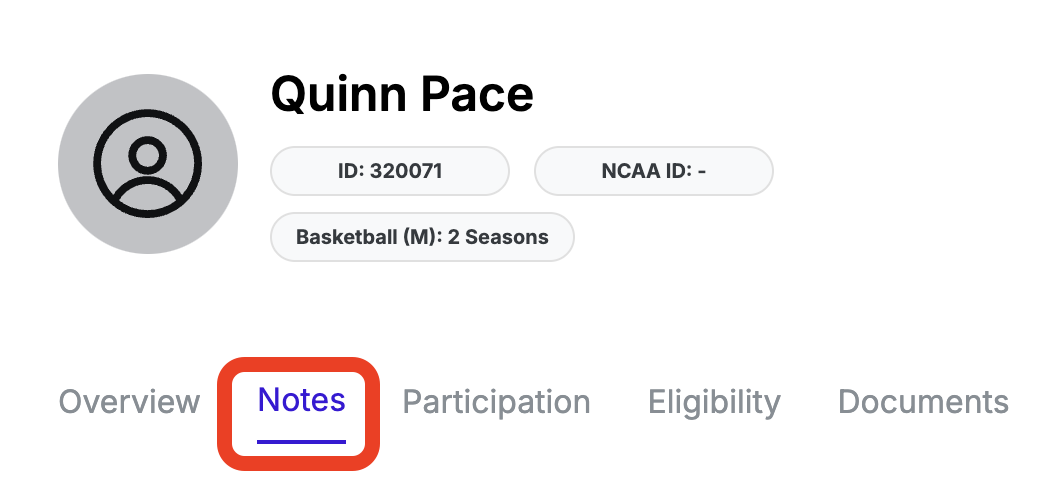
- Student-Athlete Profile: Access the Notes Tab for a complete note history for each athlete.

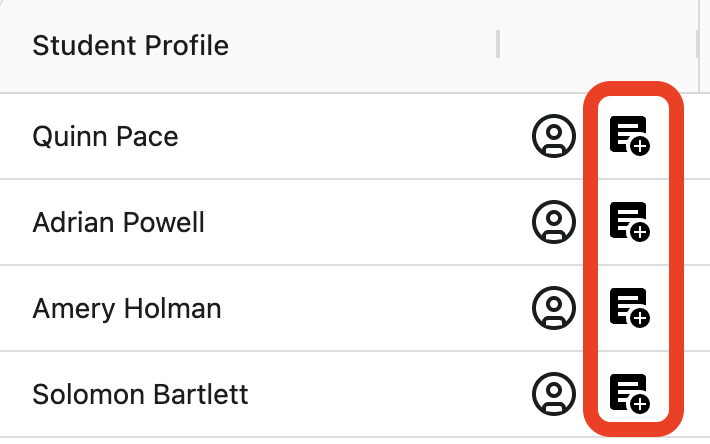
- Team Roster Table: Use the quick link next to the athlete's name to view or add notes.

Key Features and Visibility
-
Note Visibility:
- All users with access to a student-athlete profile can view the full note history for that athlete.
- Admins: can access profiles and notes for all current student-athletes.
- Coaches: can access profiles and notes for student-athletes on their assigned teams ONLY.
-
High-Priority Notes:
- Marking a note as high priority:
- Adds it to the home page for all admins.
- Highlights it as high priority on the Notes Tab in the student's profile.
- Marking a note as high priority:
-
Subscribing to a Student:
- Sends email notifications whenever a note is added for that athlete.
- For admins, displays all notes for subscribed athletes on their home page.
Notes on the Home Page
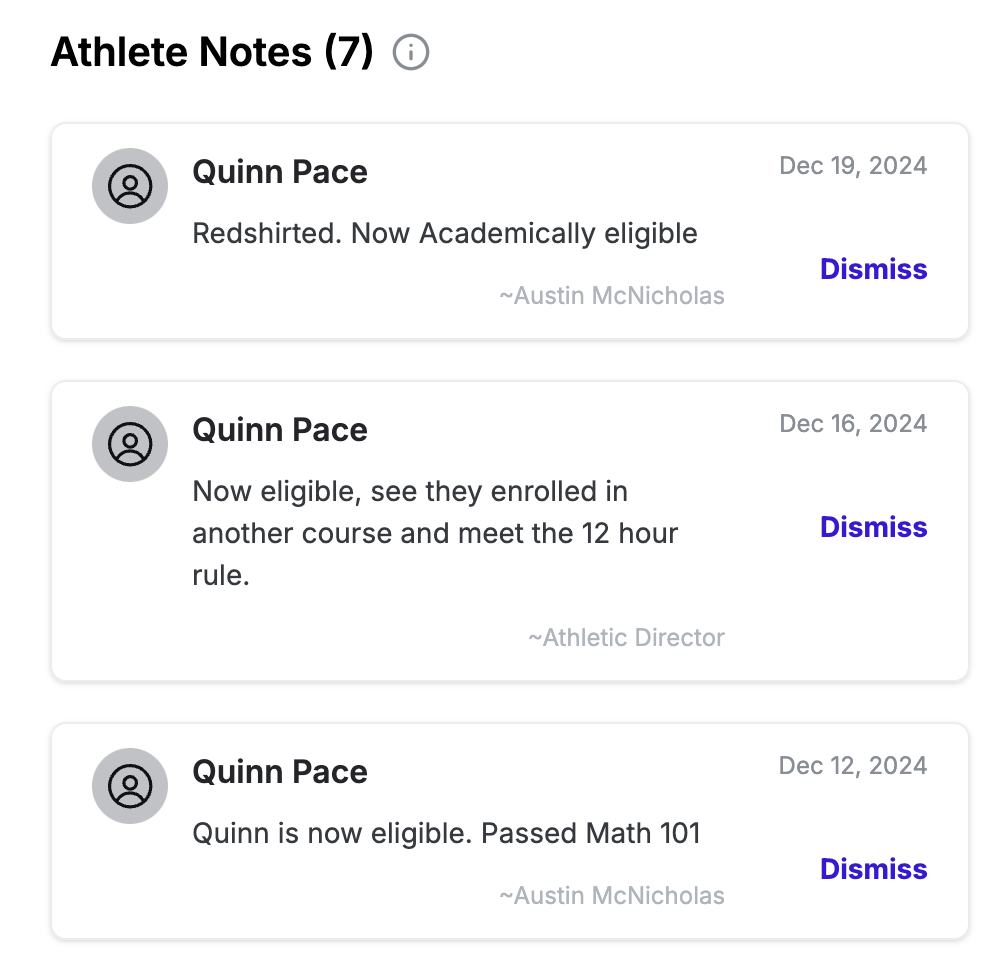
View Athlete Notes on the WinWon Home Page
- For admin - see all active notes that have been marked as high priority by the note creator and all notes (priority or not) for students you have 'subscribed to'.
- For coaches - see all active notes for all student athletes on your team(s).
- On the Home Page, Active Notes indicate that a note has not been marked as 'dismissed'.

Pro Tip
Utilize high-priority notes for notifying admins about urgent updates, and subscribe to key athletes to stay informed on all activity.