![WINWON (Standard).png]](https://knowledgebasefaqs.winwontech.com/hs-fs/hubfs/WINWON%20(Standard).png?height=40&name=WINWON%20(Standard).png)
Here’s everything you need to know to navigate and manage these profiles.
Accessing a Student-Athlete Profile
You can access student-athlete profiles in two ways:
-
Search Bar: Use the search bar to quickly find a student by name.
-
Teams > Rosters: Navigate to your team’s roster and click the profile icon to the student’s name.

At the top of each profile, you will find the student’s name, ID number, number of seasons played, and their current eligibility status for practice and competition. This overview includes completed eligibility items for medical, academic, and onboarding eligibility as well.

Profile Tabs
Student-athlete profiles are organized into five main tabs:
1. Overview
-
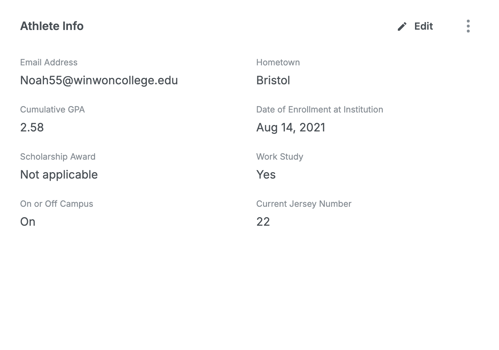
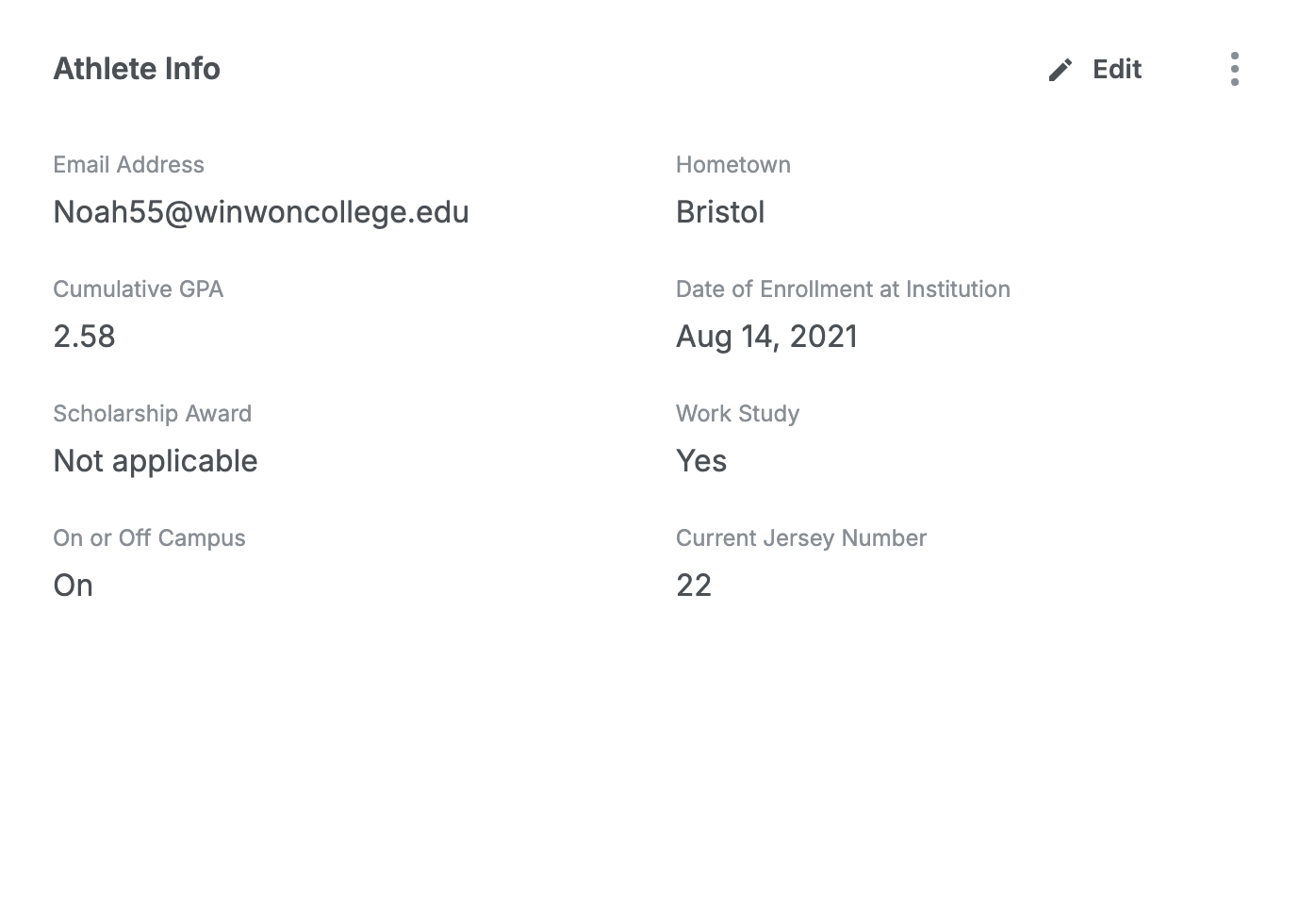
Athlete Info: Customize the fields displayed in this section by clicking the three vertical dots. Add or remove fields, and rearrange their order using drag-and-drop functionality. Edit the information in the fields by clicking the pencil icon. Fields marked with a lock icon are populated by the school’s student-information system and cannot be edited.
-
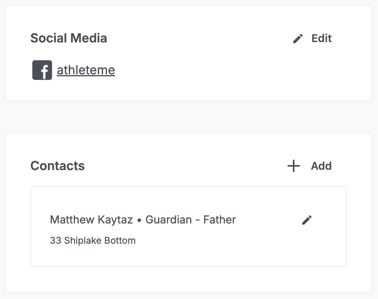
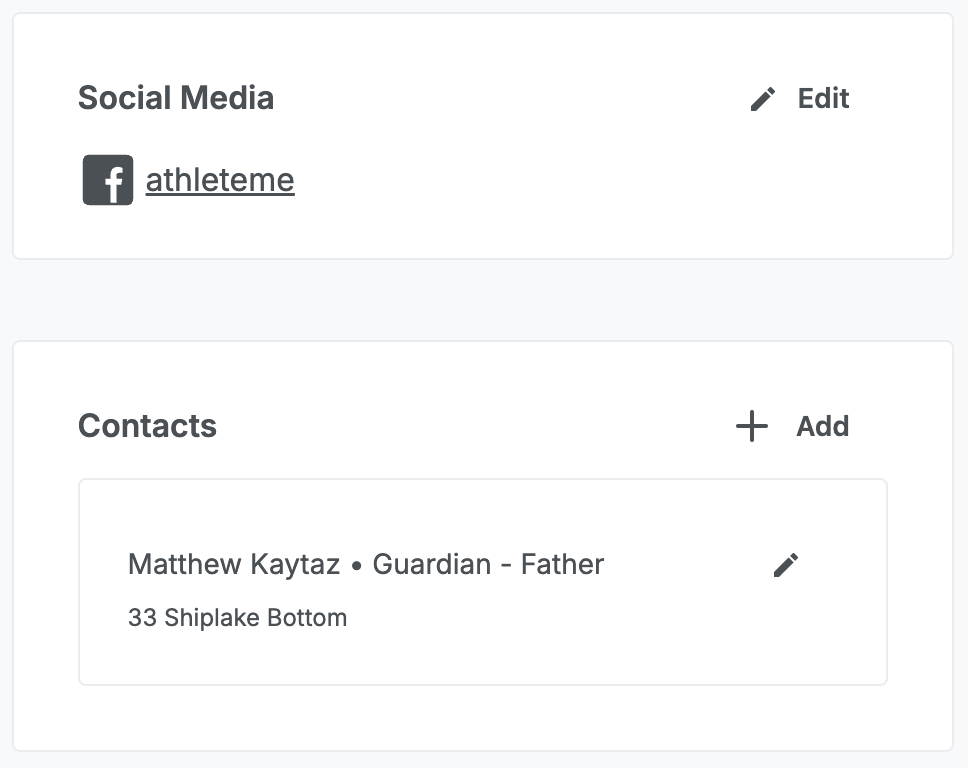
Social Media & Contacts: Add or edit social media links and contact details for the student.
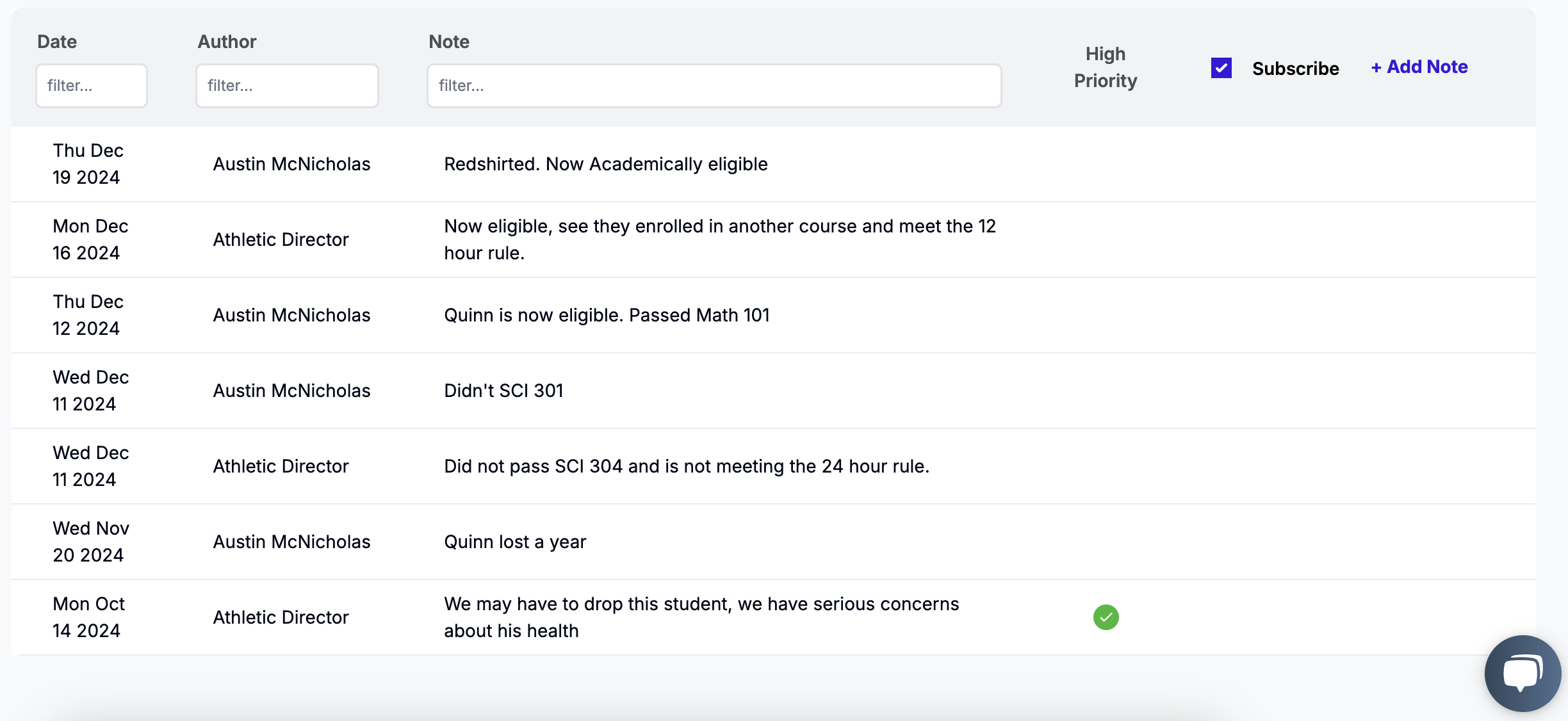
2. Notes
-
View all notes logged for the student, including the date, author, and priority status.
-
Add new notes and subscribe to the student’s note feed for updates.
-
Learn more about Student-Athlete Notes.
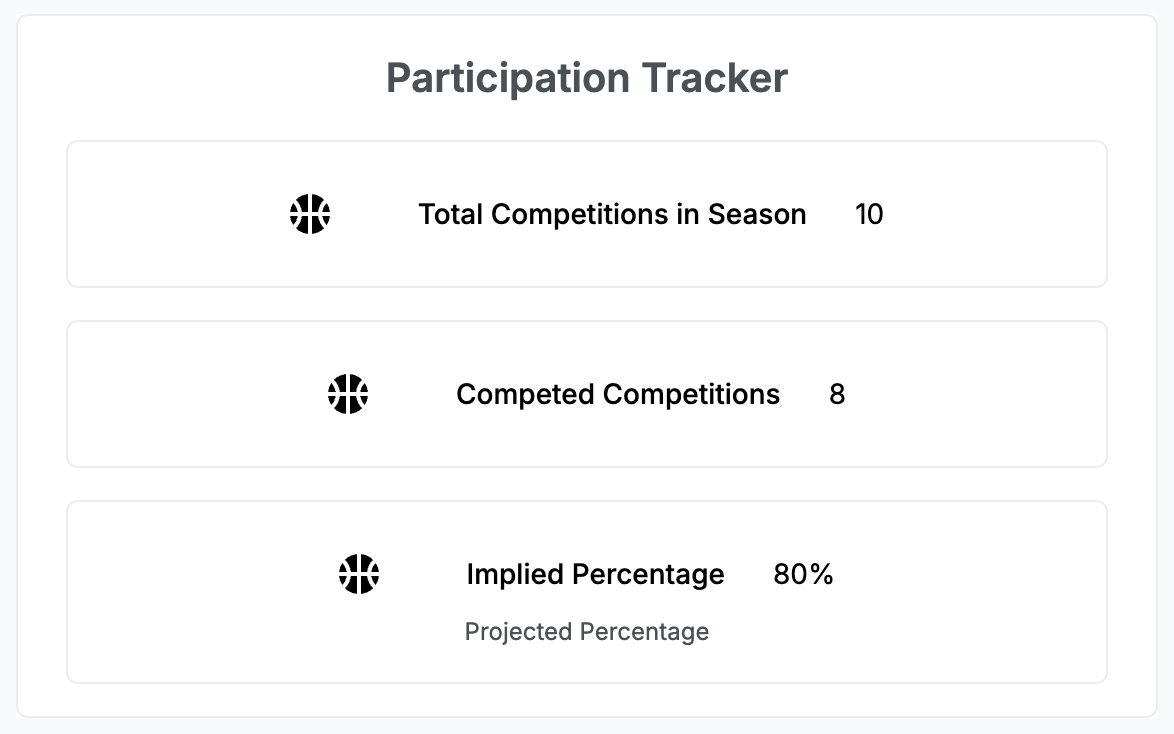
3. Participation
-
Track the student’s individual competition participation, including the total competitions for the season and the number they’ve competed in.
-
View the percentage of competitions participated in
-
To learn more about managing and tracking participation for individual athletes and team competitions: Learn more about participation tracking here.
4. Eligibility
-
See detailed statuses for medical, academic, and onboarding eligibility.
-
Click to toggle each category open and view specific checklist items.
-
Medical & Onboarding: View-only checklist items showing completion status. Admins will have edit ability.

-
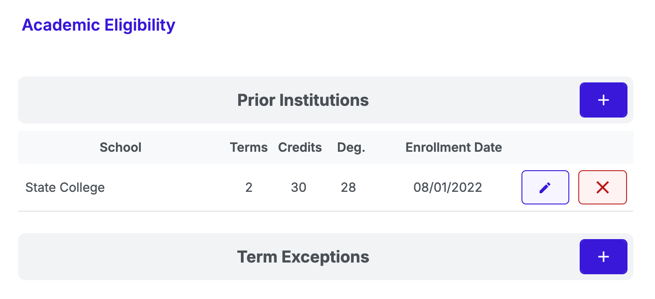
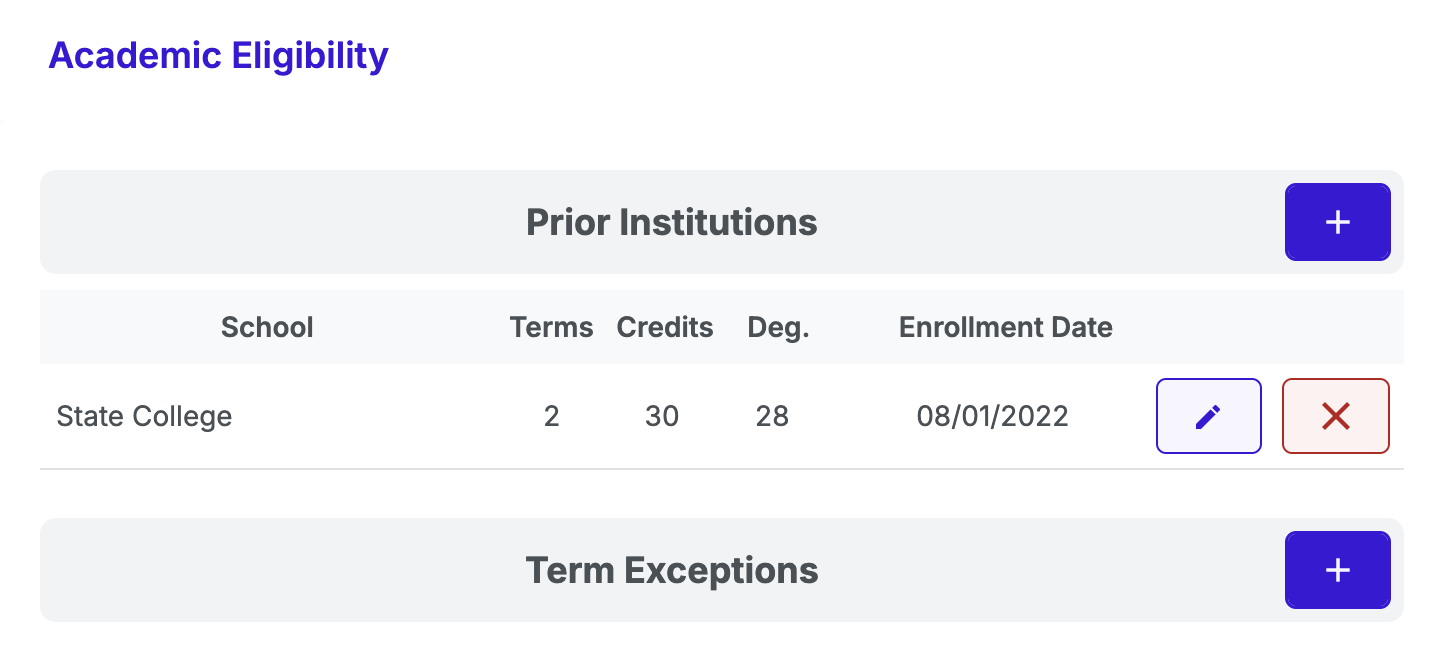
Academic: Add and view credits from prior institutions, and apply term exceptions as needed.
-
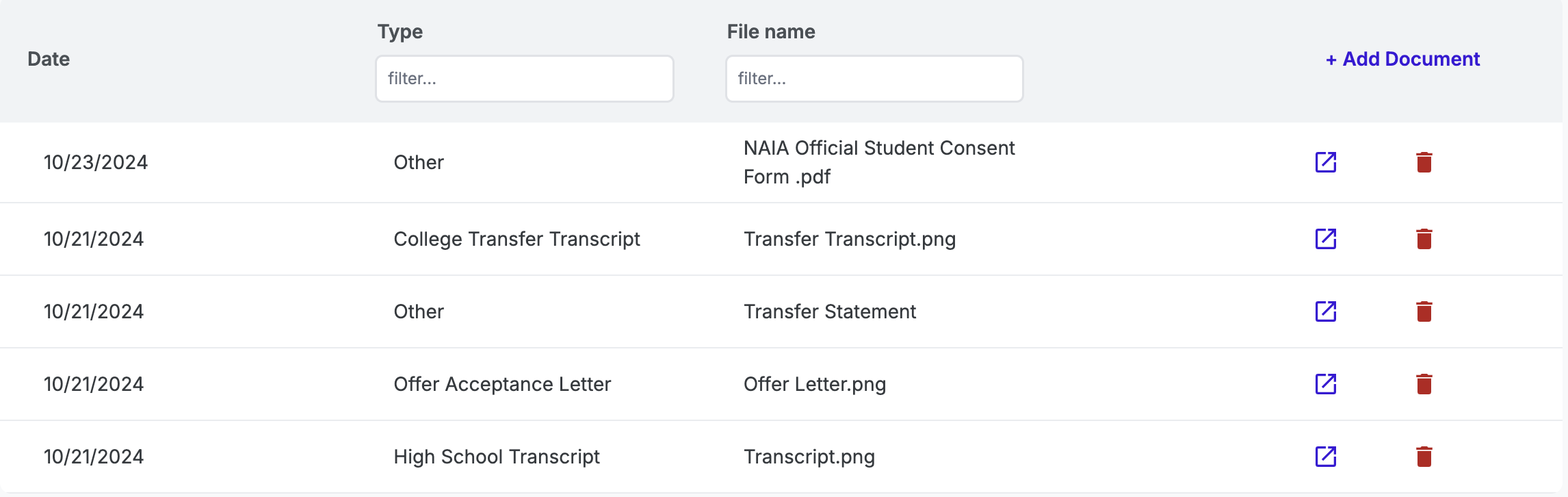
5. Documents
-
Upload, view, and manage documents associated with the student’s profile, such as transcripts or e-signed forms.
-
Download or delete any saved documents.
-
Learn more about sending forms for e-signature here.
Profile Actions
In the upper-right corner of the profile, you’ll find two key action buttons:
-
Send Email: Opens the messaging experience to send an email directly to the selected athlete.
-
Actions: Provides additional options, such as sending forms to the student-athlete for e-signature. Learn more about forms here.
The student-athlete profile in WinWon is your hub for managing and tracking all essential information about your athletes, ensuring you’re always prepared and informed.