![WINWON (Standard).png]](https://knowledgebasefaqs.winwontech.com/hs-fs/hubfs/WINWON%20(Standard).png?height=40&name=WINWON%20(Standard).png)
Overview
The NCAA Division III Time Tracking page gives coaches and administrators visibility into all calendar events while supporting monitoring compliance with NCAA Division III rules.
-
NCAA Division III metrics:
-
114 total days of countable activities (144 for Track & Field)
-
Traditional Season , Non-Traditional Season, and Developmental event categories
-
Weekly off-day requirements
-
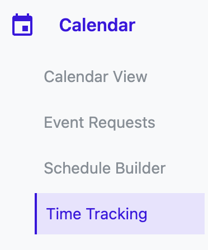
Accessing Time Tracking
-
Navigate to Calendar > Time Tracking.
-
Calendar Admins: Can view and manage time tracking for all teams.
-
Coaches: Only see their assigned teams (or multiple if they coach more than one). Toggle between teams in the top-right menu.
Notes Box

At the top of the page, Calendar Admins can add a summary message. This can be key information, a note, a reminder, or an important update.
-
Only Admins can edit this note (using the pencil icon in the box).
-
All teams will see the same note when they access Time Tracking.
Setting Season Dates

Enter Regular Season Start/End and Championship Start/End dates for your team.
-
Designed to help you keep key dates top of mind.
-
Helps administrators who may not memorize sport-specific dates.
Category Totals (NCAA)

For NCAA, the Category Totals box shows:
-
Developmental – # of events categorized as Developmental
-
Non-Traditional – # of events categorized as Non-Traditional
-
Traditional – # of events categorized as Traditional events
-
Total Weeks – # of weeks with at least one event
-
Total Days – # of unique days with events scheduled
Updates automatically as events are added, edited, or deleted.
Viewing Options

- Show Weeks (toggle) – Displays events grouped by week. Each week shows dates covered. Click the caret to expand and see events.
-
Show Off Days (toggle) – Available only when Show Weeks is on.
-
Displays a chip next to each week showing number of Off Day events in that week.
-
☑️ Gray = 1 or more off days scheduled
-
⚠️ Yellow = 0 off days scheduled
-
NCAA Time Tracking Table

Columns include:
-
Event Date & Time – Day, start time, end time
-
Event Type – Practice, competition, strength, etc.
-
Location – Facility where event is held
-
Event Category – Traditional, Non-Traditional, Developmental
-
Time Tracking Notes – Free text field for adding any context
Table Features
-
Double-click the Event Category cell to update directly in the table.
-
Event Category can also be set during event creation (via Schedule Builder or Calendar View).
-
Sort any column by clicking the header.
-
Filter Event Type and Location using the filter icon.
-
Export table to Excel/CSV by right-clicking anywhere in the table.

🔗 Want tips for keeping your D3 team compliant? See our Best Practices for Time Tracking article for recommended workflows and tips!