![WINWON (Standard).png]](https://knowledgebasefaqs.winwontech.com/hs-fs/hubfs/WINWON%20(Standard).png?height=40&name=WINWON%20(Standard).png)
Access
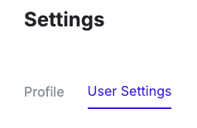
- Settings Administrators will have access to the User Settings tab in the Settings page.
- Navigate to Settings in the side panel
- If you do not see the User Settings tab, you do not have User Settings permissions.
Understanding Permission Types
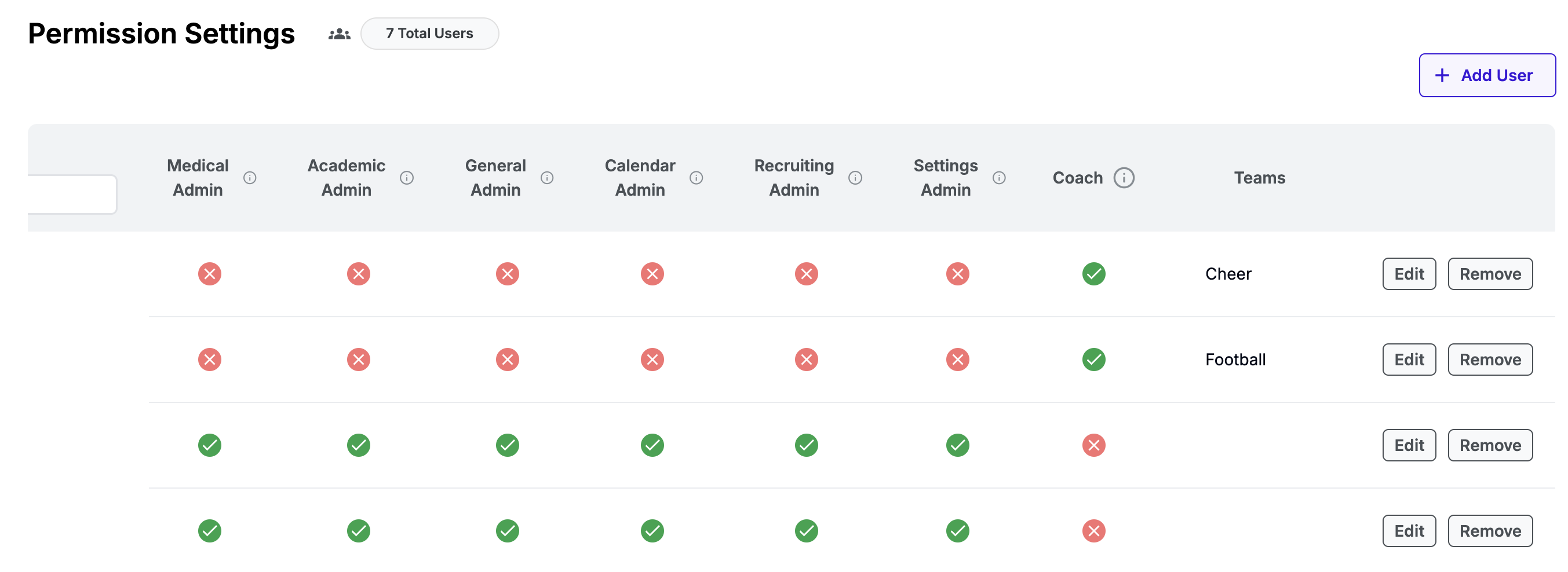
Medical Admin
- Users with Medical permissions are medical admins. They can view and update the medical eligibility center, including medical checklists for student-athletes working towards clearance for practice and competition. This permission is typically for Athletic Training staff.
Academic
- Users with Academic permissions are academic admins. They can view and update the academic eligibility center. This permission is typically reserved for Faculty Athletic Representatives (FARs) or staff managing academic eligibility.
General
- Users with General permissions are general admins. They can view and edit Onboarding Checklist items for student-athletes and view and edit Participation Tracking all in the Eligibility Center. They also have access to all team rosters, student-athlete groups, and student-athlete forms.
Calendar
- Users with Calendar permissions are calendar admins. They can access the "Event Requests" page in the Calendar section of the app, where they can review and approve event requests. This role is typically assigned to those managing facility scheduling and event approvals.
Recruiting
- Users with Recruiting permissions are recruiting admins. They can view and access all recruiting activity for all teams including recruits, forms, and questionnaires. Coaches automatically have recruiting access for their assigned teams, while admins only see recruit info if assigned this permission.
Settings
- Users with Settings permissions are settings admins. They will have access to the settings page and can add or remove users and manage their permissions.
Coach
- Users with Coach permissions are assigned to specific team(s). They can view rosters, groups, student-athlete info, and recruit details for their assigned teams only. They can schedule events and submit event change requests for their teams, but can only view events for other teams.
Teams
- The Team permission ties to the Coach role, allowing you to assign specific teams that each coach has access to.
Managing Users
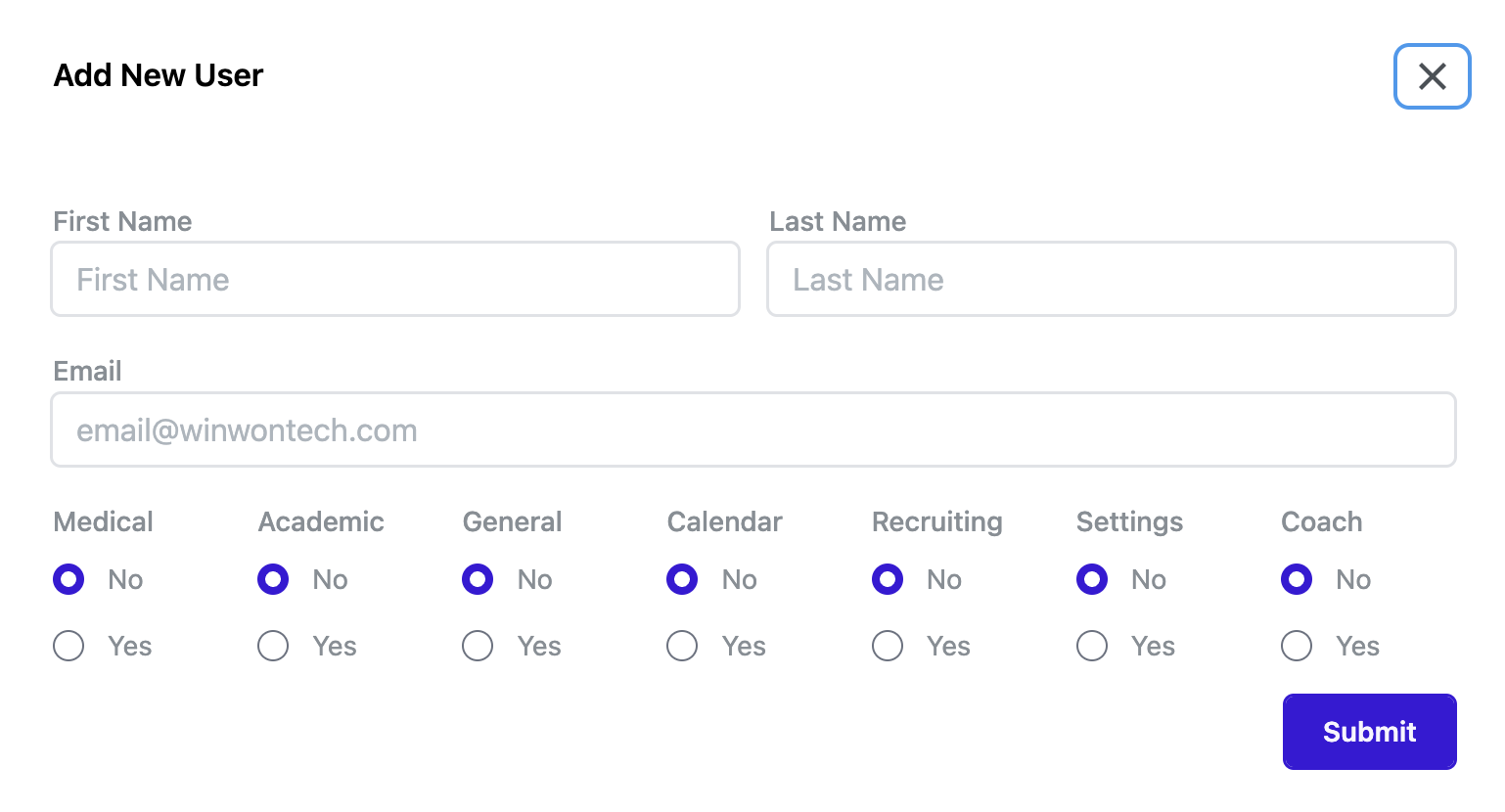
- To add a new user, click the "+ Add User" button in the upper righthand corner.
- In the modal popup window, add the new users first name, last name, and email address. Assign their permissions accordingly. Note that you will only see the list of teams to assign a user when you have selected "Yes" for Coach permission. You can assign multiple teams.
- To manage an existing user, use the "Edit" and "Remove" butt
 ons next to each user.
 - You can see a total count of users on the platform at the top of the page.
To learn more about helping new users access their account and login for the first time, check out Accessing WinWon Web and Mobile Applications.