![WINWON (Standard).png]](https://knowledgebasefaqs.winwontech.com/hs-fs/hubfs/WINWON%20(Standard).png?height=40&name=WINWON%20(Standard).png)
From the side navigation panel, navigate to Teams > Rosters, where WinWon allows you to view and manage your student-athlete rosters effectively.
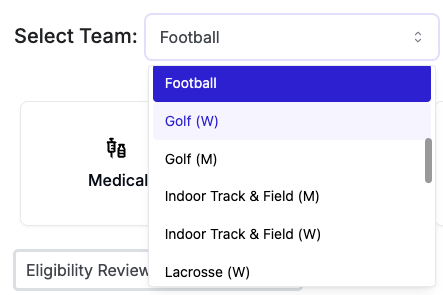
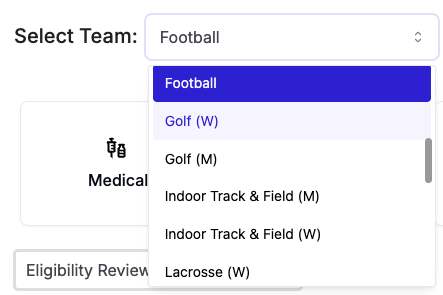
- Select a Team: If you have access to multiple teams, use the dropdown to choose the one you'd like to view.
- Administrator View:
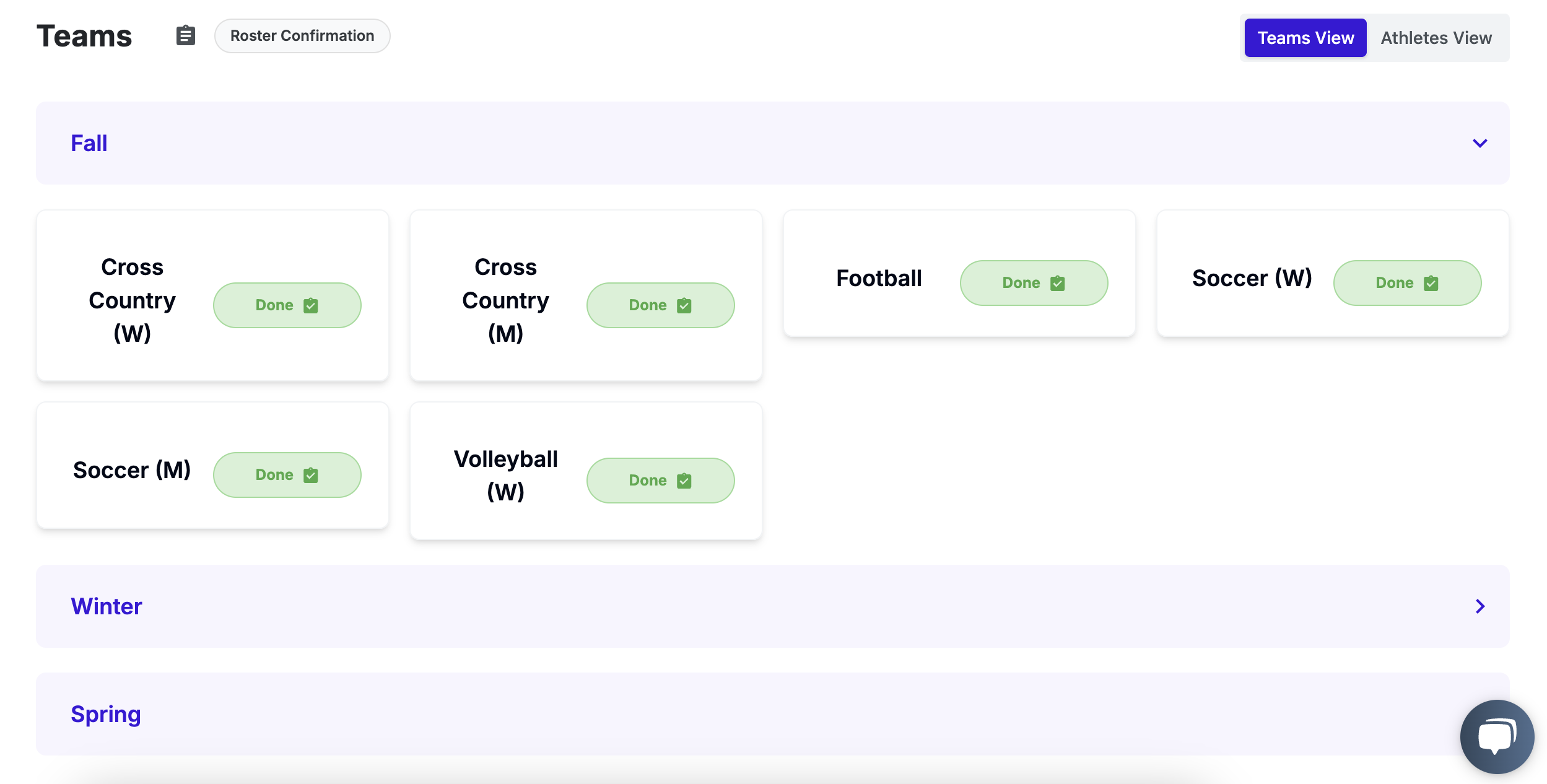
- If you have administrator permissions, you will have access to all teams. Click Fall, Winter, or Spring to toggle open the teams in that season. Select your team, and follow all steps below to view and manage the roster.
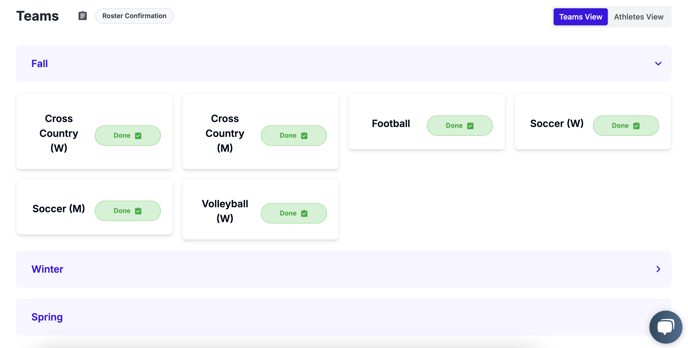
- As an admin, you will also have access to an all athletes view. Toggle to Athletes View in the upper right of the screen. Follow these steps to Create Custom Views and Edit the Roster Table for all athletes.

- If you have administrator permissions, you will have access to all teams. Click Fall, Winter, or Spring to toggle open the teams in that season. Select your team, and follow all steps below to view and manage the roster.
- Team Overview: At the top, see a high-level summary of your team's medical, academic, and onboarding eligibility, plus the team GPA average if it is provided by your school.

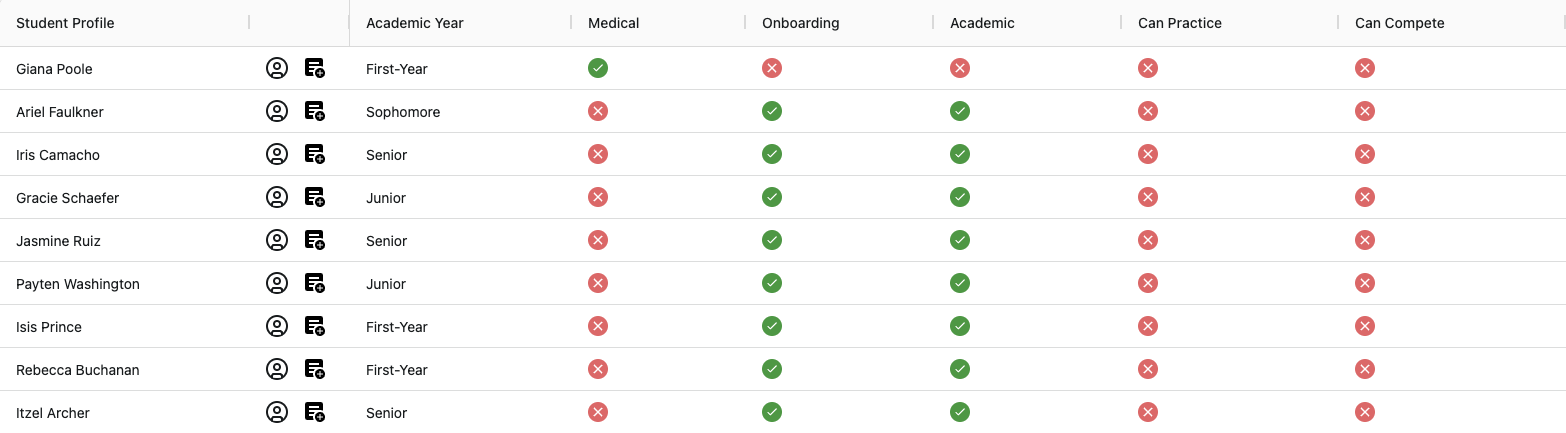
- Roster Table: Below, see a table view of your roster that provides eligibility statuses for each athlete, including whether they are cleared to practice or compete and if they have completed the different eligibility requirements. Learn more about Editing the Team Roster Table and Creating Custom Team Views


Managing Your Roster
To add, edit, or remove athletes, select Manage Roster in the upper right corner.
You can: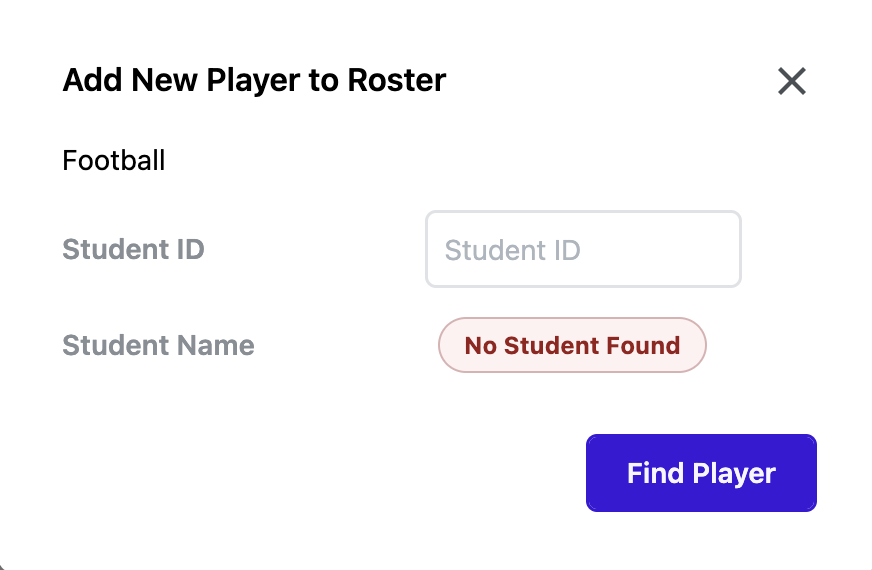
- Add Athlete: Input the student’s school ID to search for them and add them to the roster OR use the Search by Name feature. Learn more.
- Remove from Roster: Select "Remove" next to a student’s name, choose a reason, and confirm.
- Edit Details: Double click on any value for Eligibility ID, Status, or Active on Roster to make changes.
Please note, the Student ID and player first and last name fields are locked by the system when the athlete is added. - Confirm Roster: Once your roster is set for the season, click "Confirm Roster" to notify administrators that eligibility certification can begin. The system will now show the date you confirmed your roster. You may still make updates post-confirmation as necessary.

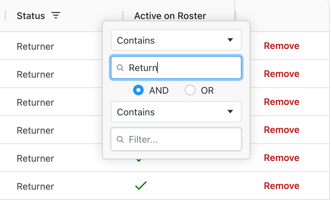
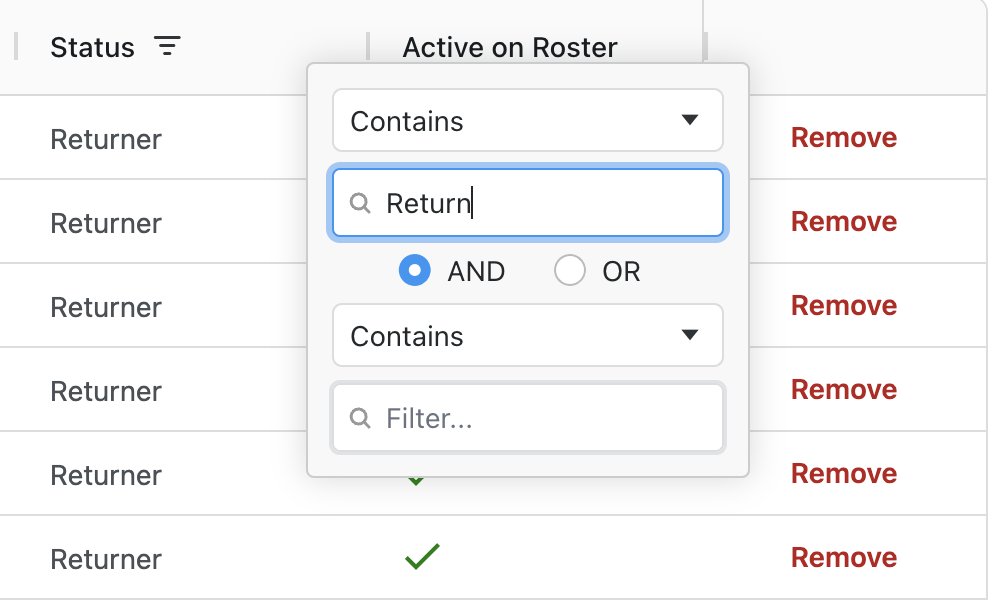
- Sort and Filter: Click the column name/header for any value to sort or filter by that column. Combine sorting or filtering across multiple columns to narrow down the data shown as you like.
These features make it easy to keep your team’s roster accurate and up to date.
Note - If the system is not finding a student by their ID when you add them to the roster, troubleshoot with these common reasons why:
- Is the student enrolled for the upcoming term or academic year? WinWon is only able to find students that are enrolled.
- Is the student registered for classes? Students need to be enrolled and registered for classes to be searchable by WinWon.
- Double check that you entered the student ID correctly and that you are looking at the correct ID for the correct student. We often see typos!
If you are still unable to search for an athlete to add them to your roster after confirming the steps above, please reach out to WinWon support for assistance using the chat feature in the bottom righthand corner of the WinWon app.